
Connecting Magento 2 as a Retailers
This guide is for Retailers connecting their Magento 2 store with Modern Dropship. The Seller guide is HERE!
Note: Modern Dropship supports integrations with Magento version 2.4.4 and higher. Lower versions may not be able to integrate successfully.
1. Connect Platform
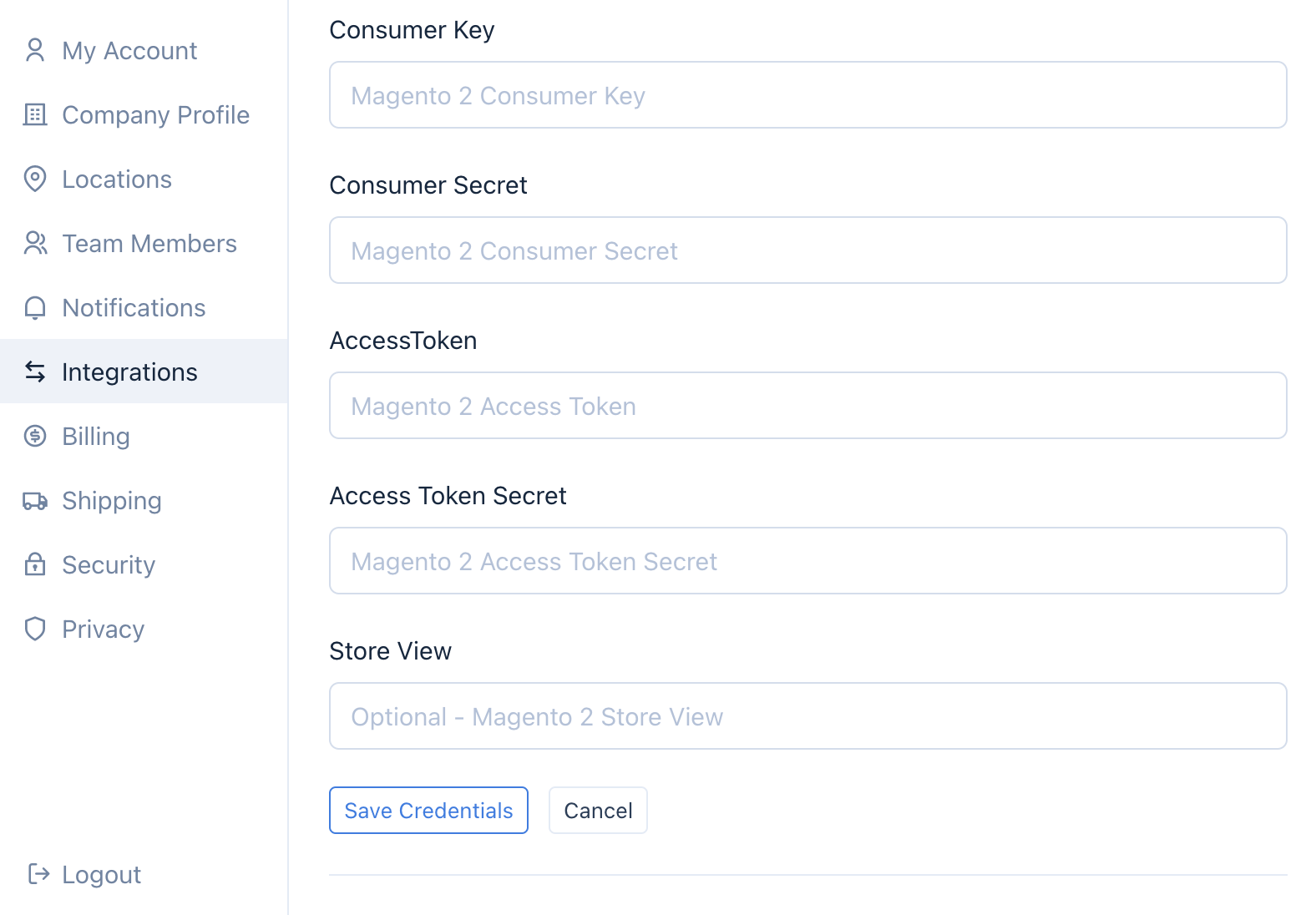
Ensure that Magento2 was selected when your company was created. Check this by looking for "Connect your Magento 2 Store" in your Modern Dropship account's Integration Settings.
Provide the URL of your store during sign-up. The format is "https://subdomain.store.com".
If you do not see this section, contact support.
2. Store View (Optional)
Feel free to skip this step if you use your "default" Magento2 store view.
Store views can be used to customize your Magento2 instance. Examples for using different store views:
Different languages (English, French, Spanish)
Different supply models (Dropship, Wholesale, Consignment)
Different product collections (Standard, Exclusive)
If you want to create a unique store view to use with your Modern Dropship account:
Create a new store view.
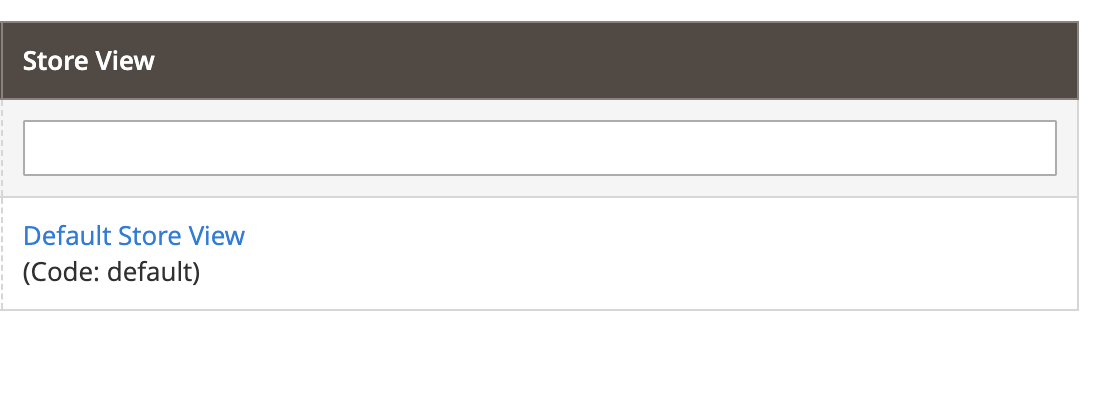
Copy the "Code" of the store view. It is under Admin > Stores > All Stores > Settings > Store View:
3. Grant Permissions
Go to your Admin dashboard > Stores > Configuration > Settings.
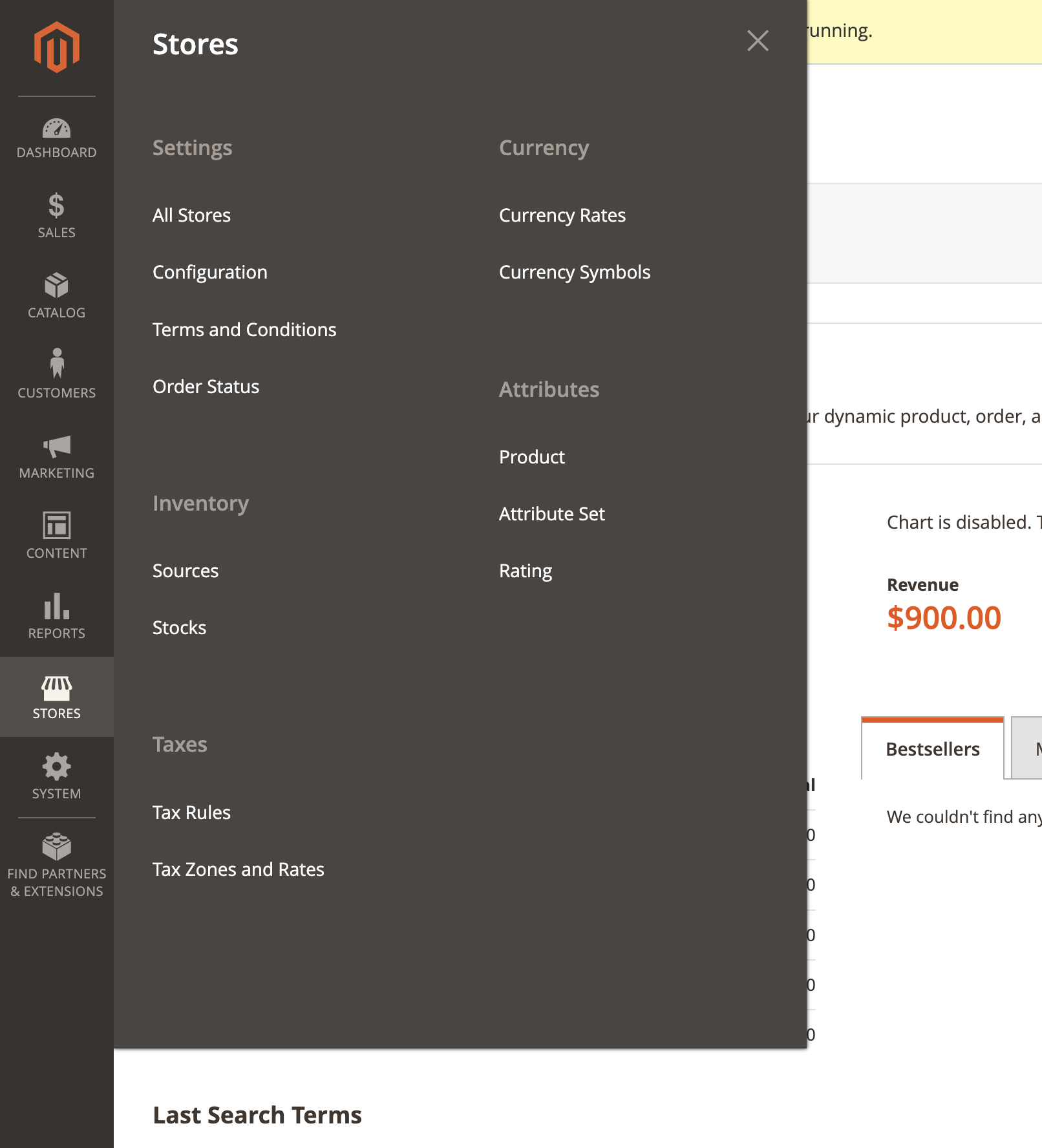
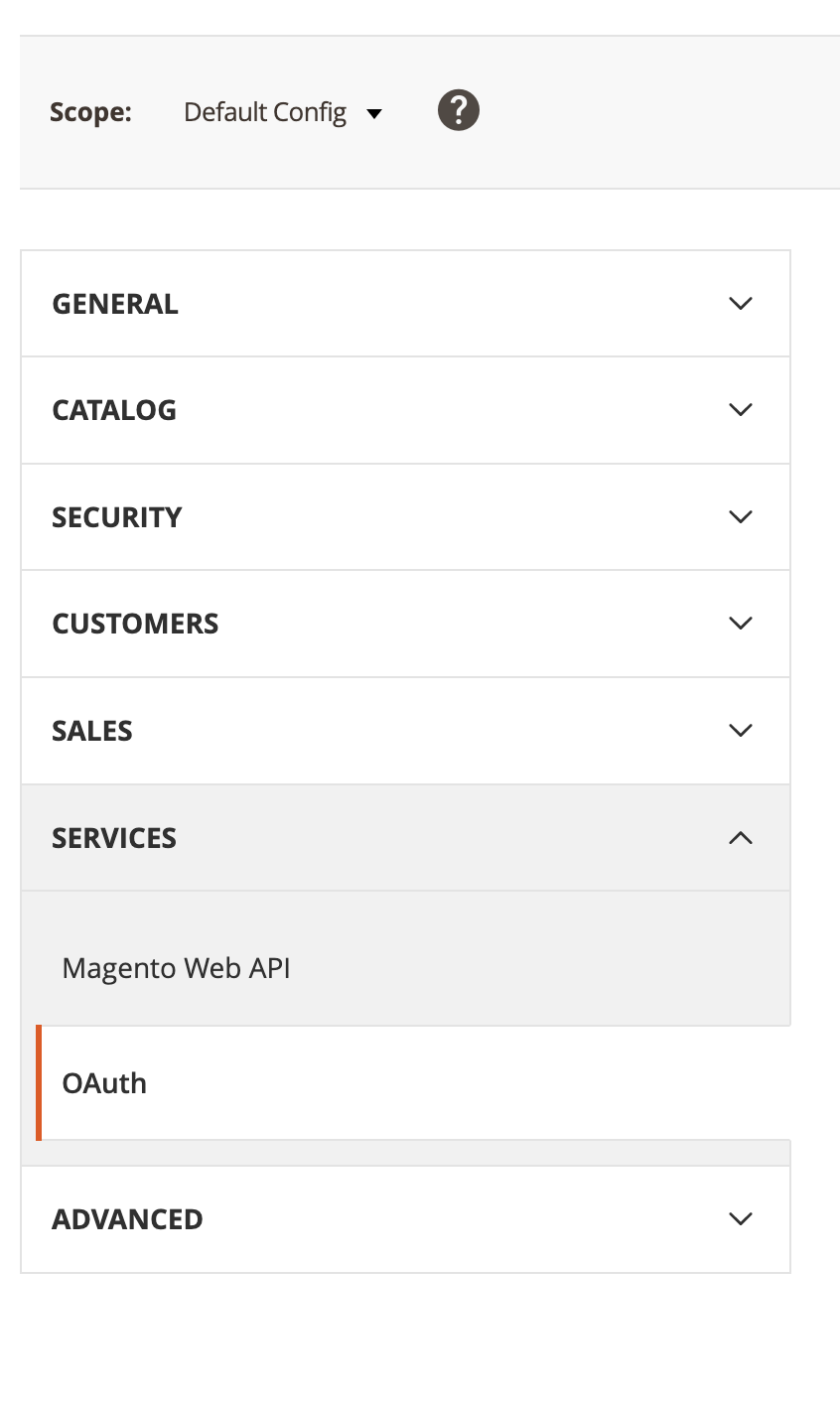
Next, navigate to Services > OAuth:
Click the dropdown for "Allow OAuth Access Tokens to be used as standalone Bearer tokens" and select "Yes":
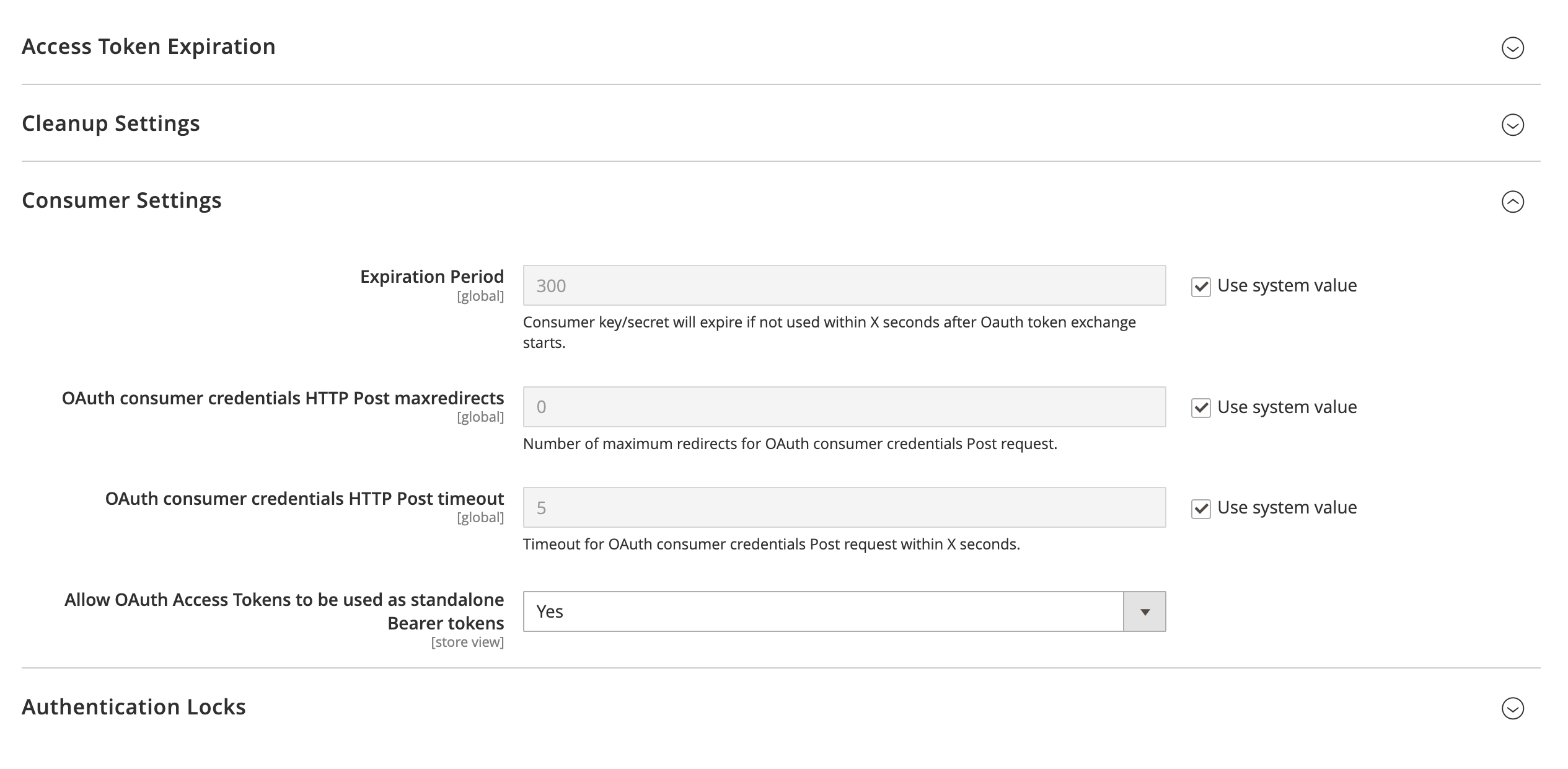
Click "Save Config" at the top of the screen:

4. Generate API Keys
You will need to provide Modern Dropship with Magento2 API keys in order to connect your store.
Go to your Admin dashboard > System > Extension > Integrations.
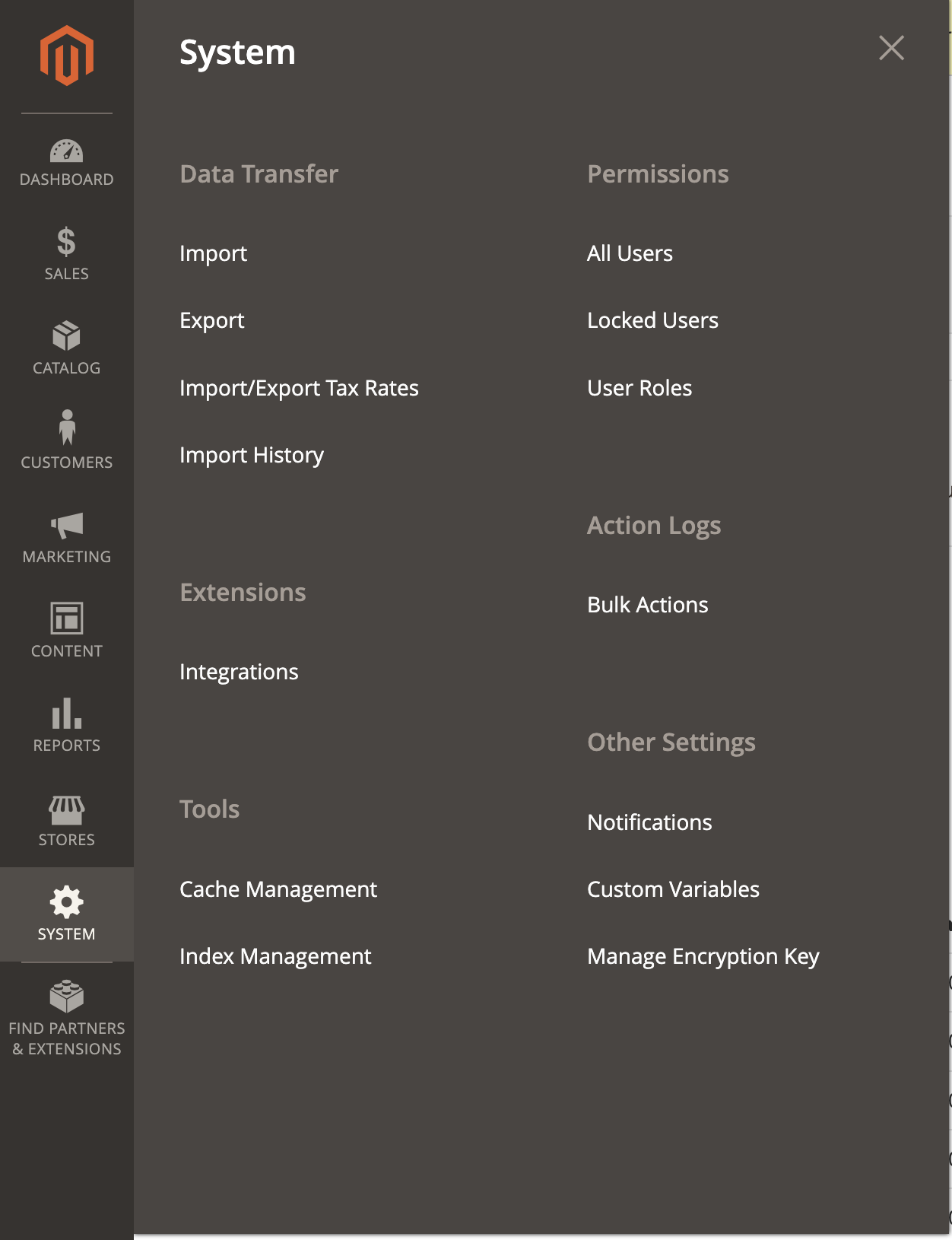
Click "Add New Integration":

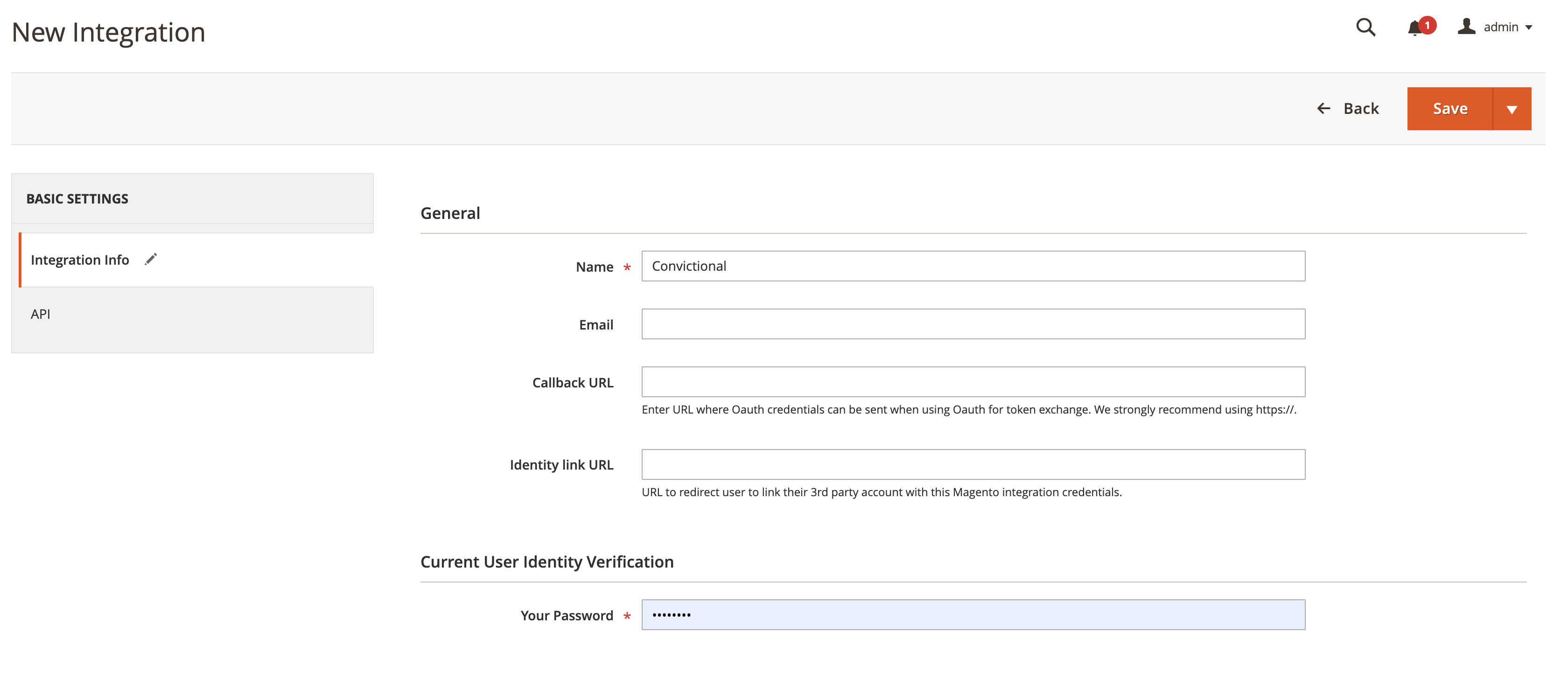
Enter in "Modern Dropship" for the "Name" field. Enter your admin password in the password field:
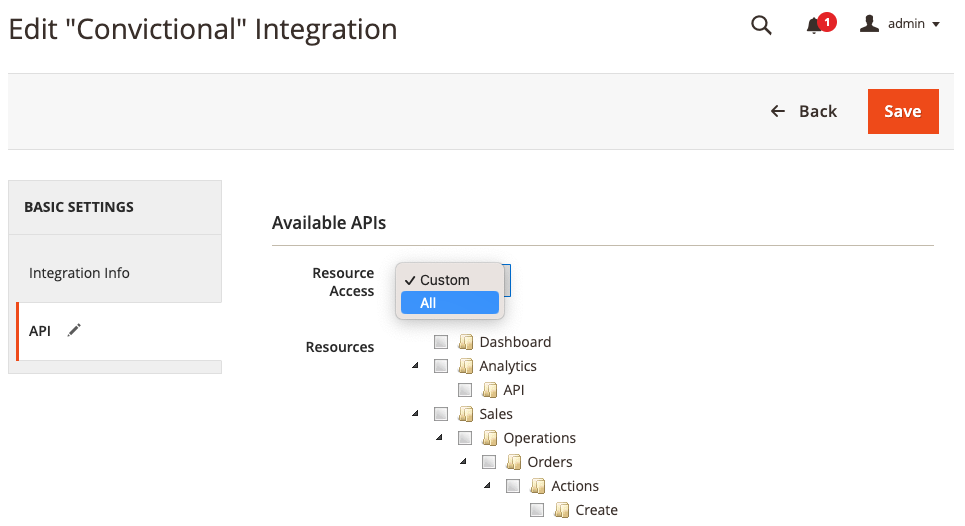
Go to Basic Settings > API. Click the "Resource Access" dropdown under "Available APIs". Select "All":
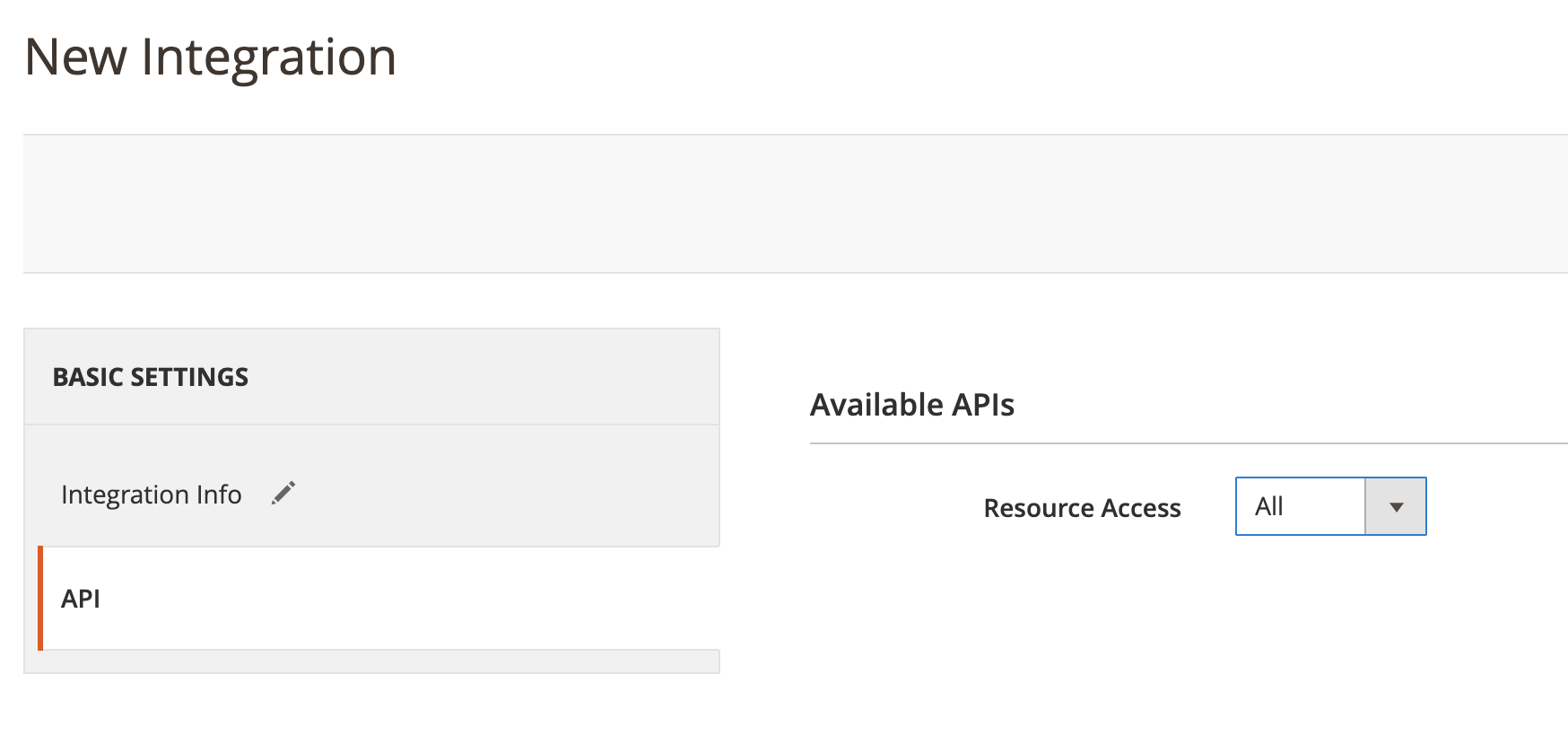
Selecting "All" should check off the full list of resources that display:
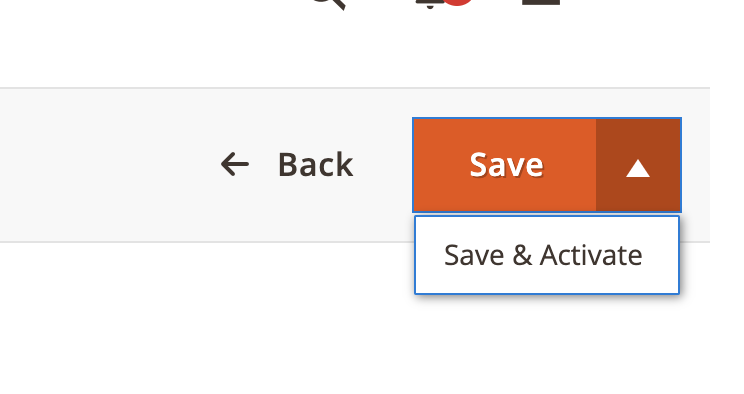
Click on the arrow beside "Save" and click "Save and Activate":
Click "Allow":
This will generate the API keys:
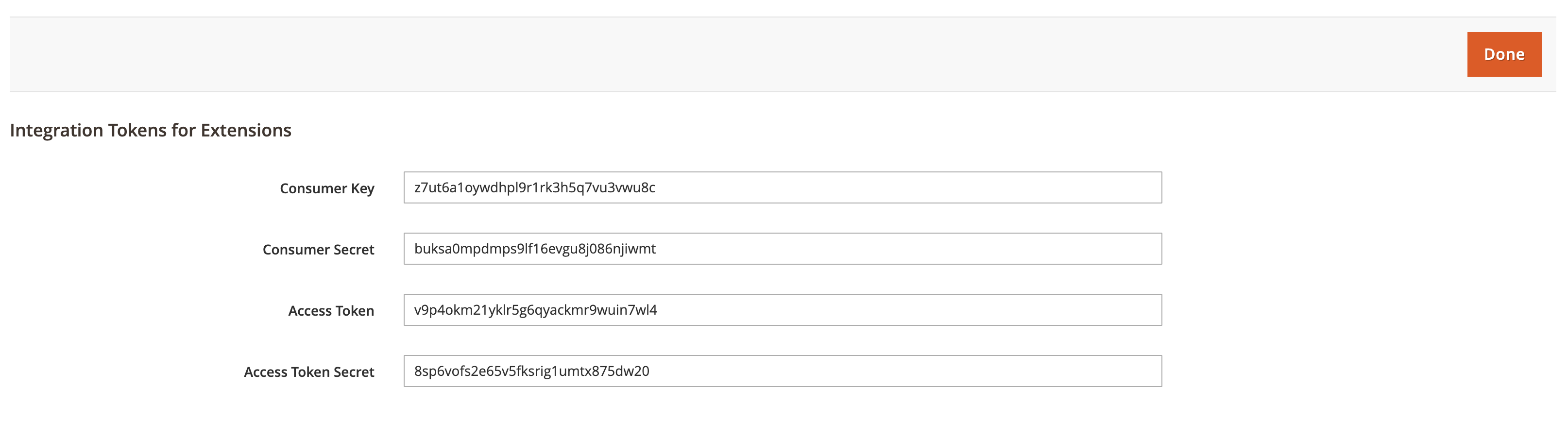
Copy these keys into your Modern Dropship Settings panel. Enter "code" for the store view if you created one:
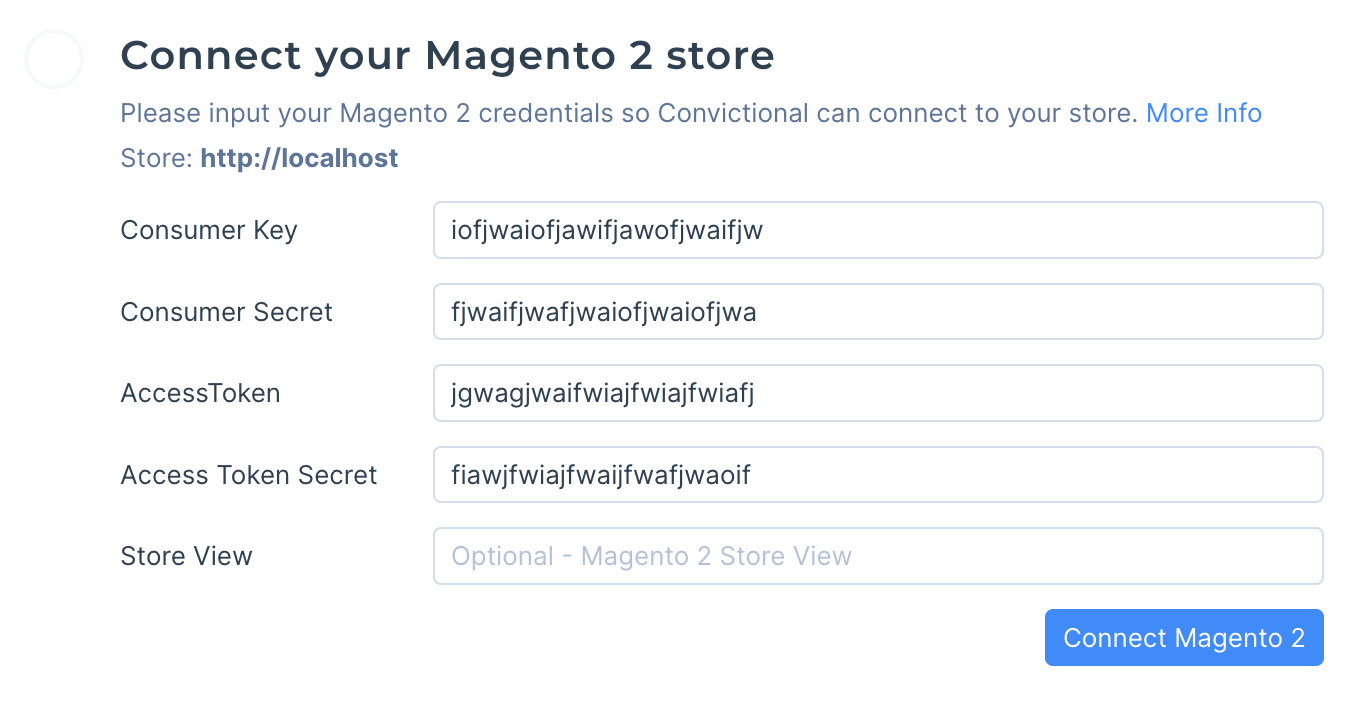
Click "Save Credentials". Modern Dropship will display that the credentials were saved correctly:
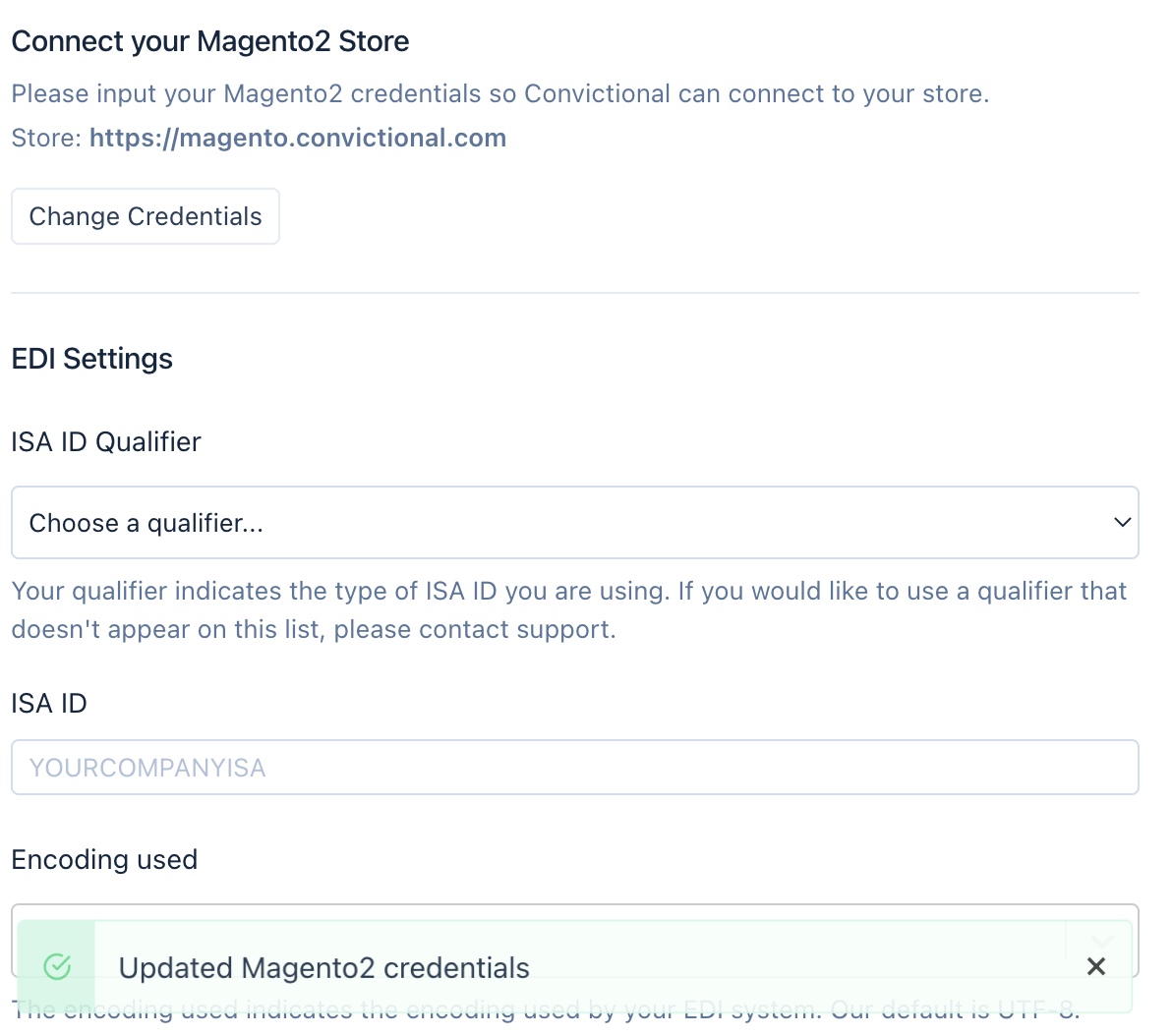
Tip: Within 30 minutes, your products will be visible within the Products tab.
5. Index Management
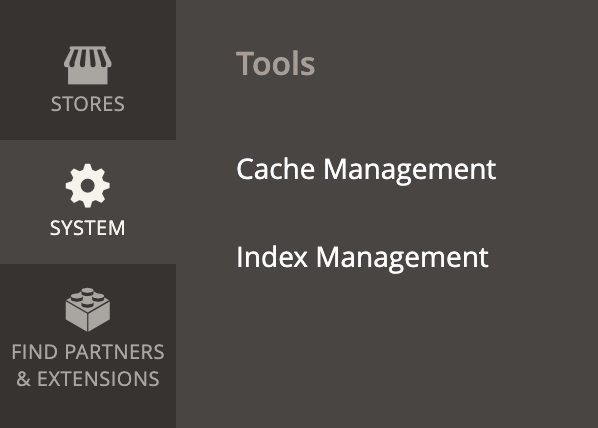
Navigate to Admin > System > Tools > Index Management:
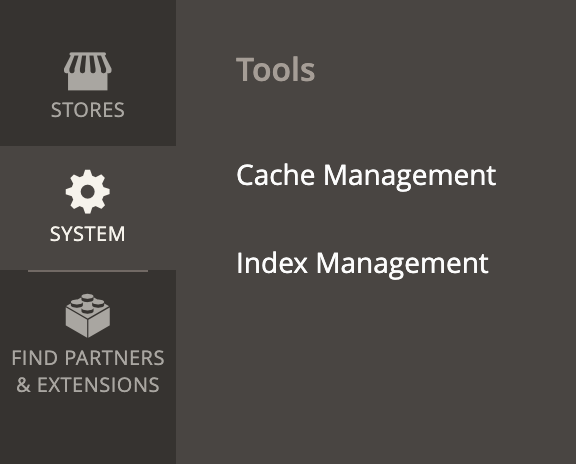
Use the dropdown to "Select All" indices:
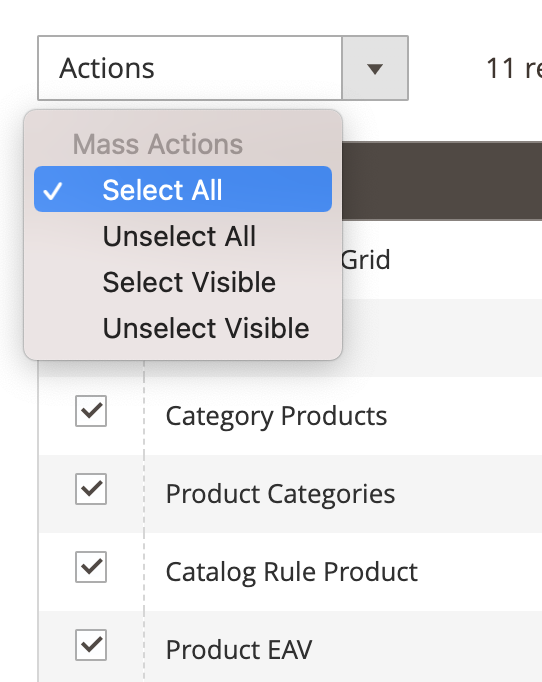
Click on "Actions". Change the value to "Update by Schedule". Click "Submit":

6. Flush Cache
Navigate to System > Tools > Cache Management:
Click "Flush Cache":

Next Steps
Your Magento2 store is now connected. Modern Dropship will sync products, inventory counts, and fulfillments.
Go to the Partners tab to invite sellers to trade with you.
Modern Dropship requests originate from 34.27.67.179