
Connecting BigCommerce
1. Connect Platform
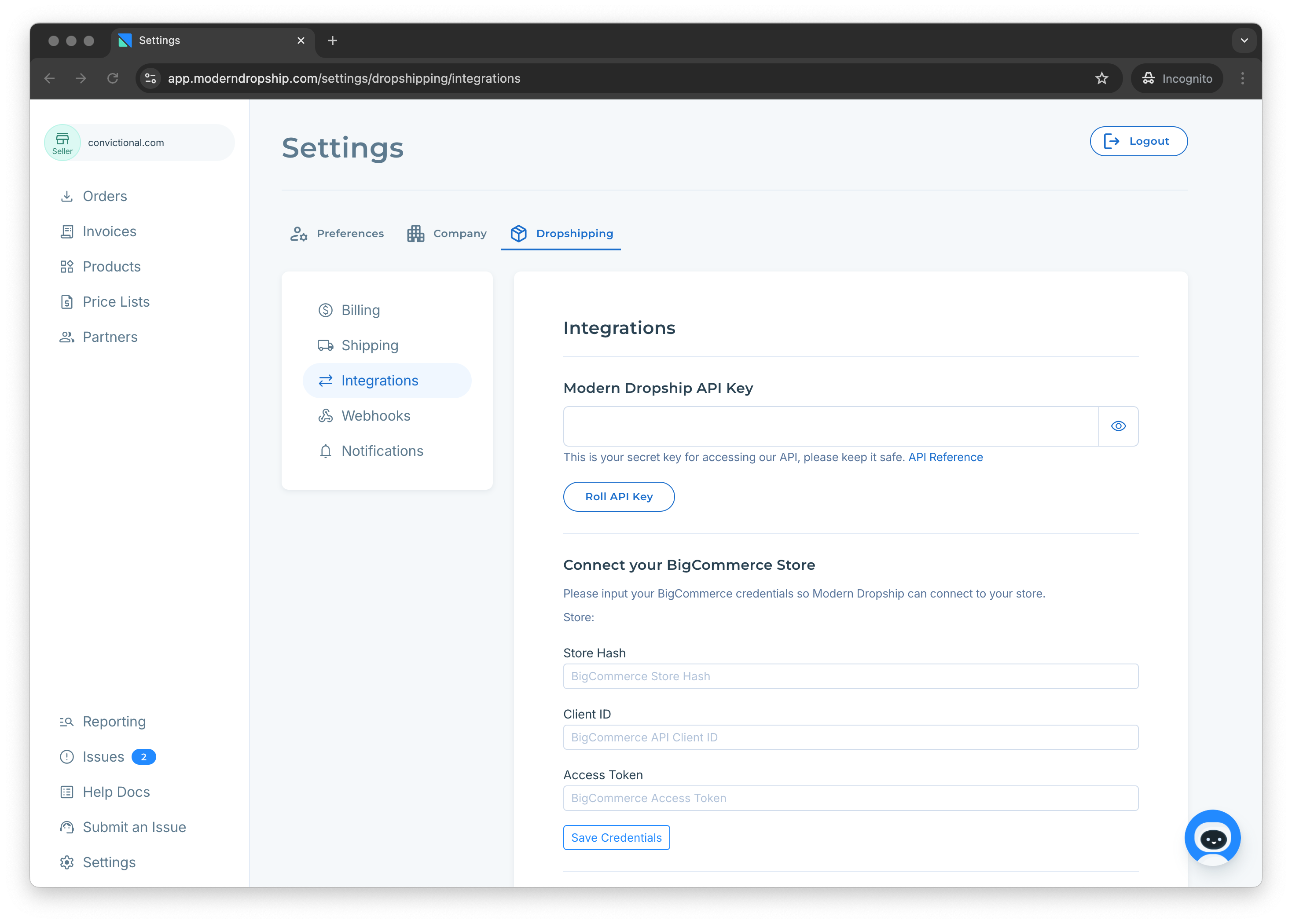
Navigate to Settings > Dropshipping > Integrations (If you do not see the BigCommerce store setup area, please contact us at support@moderndropship.com):
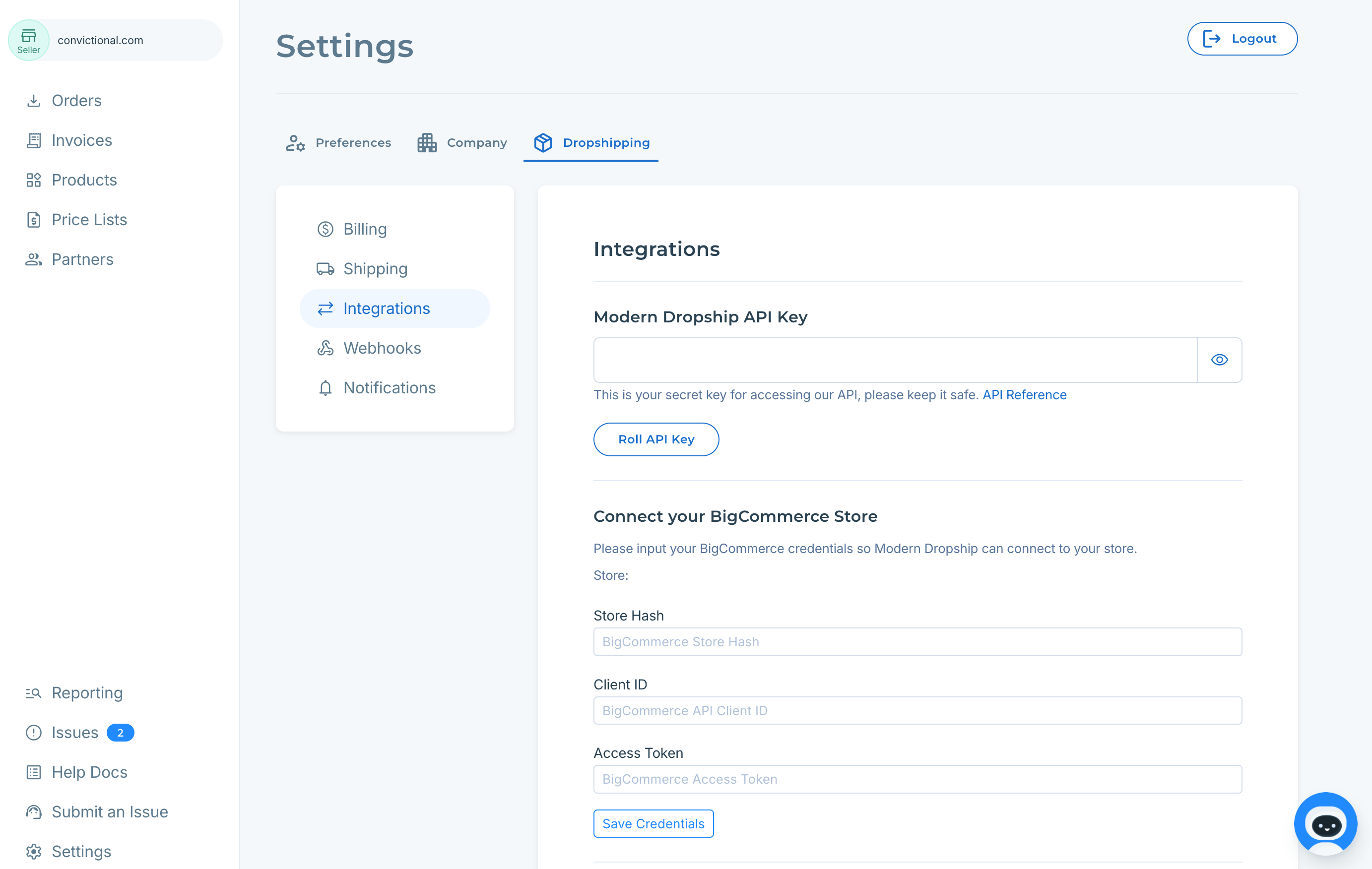
Tip: The format of the store URL you will need is https://(storeid).mybigcommerce.com/
In order to connect with your store, we will need three pieces of information:
Company Hash
Client ID
API Access Token
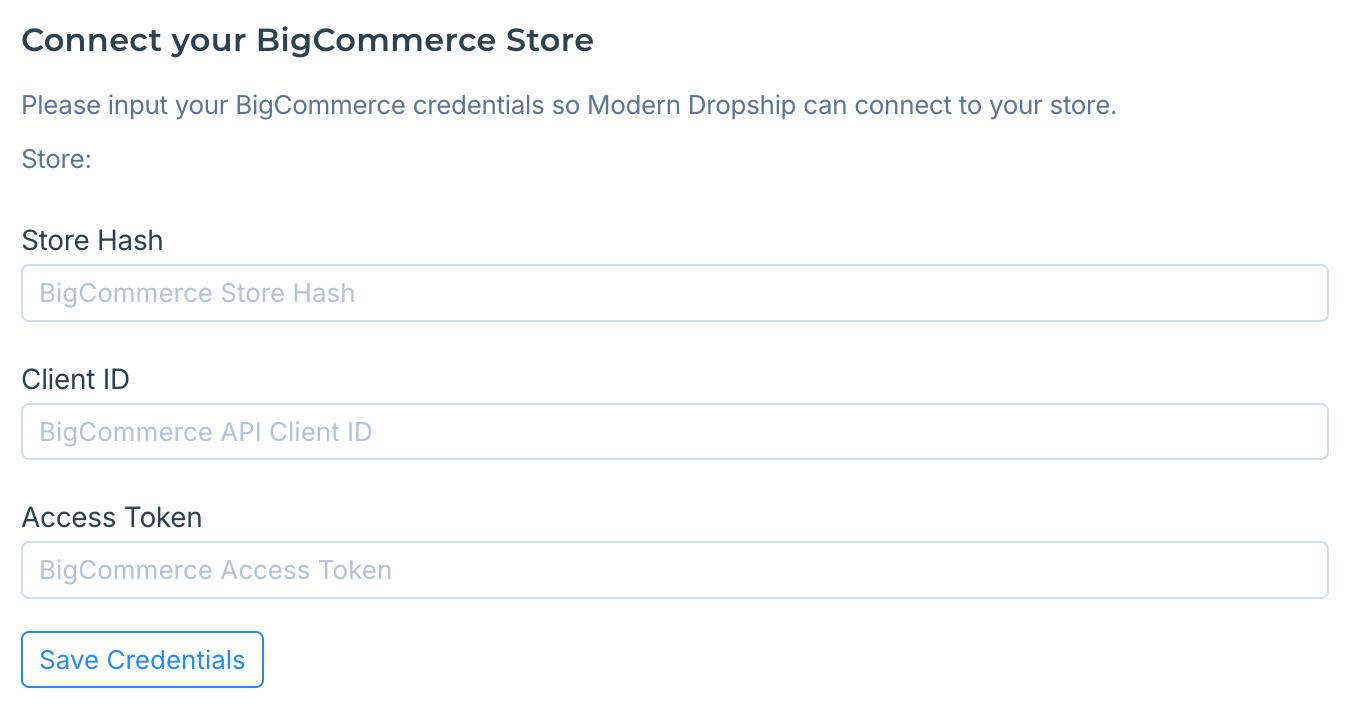
2. Create an API Account
Modern Dropship needs permissions from you when you create your API Account.
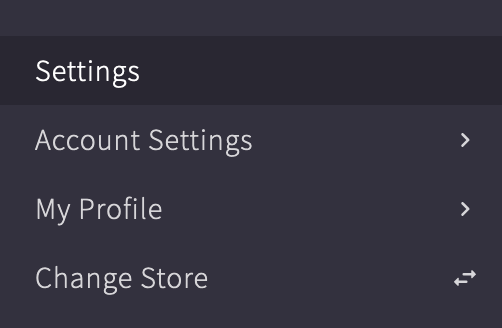
In BigCommerce store > Left-hand dashboard > Settings > API Accounts:

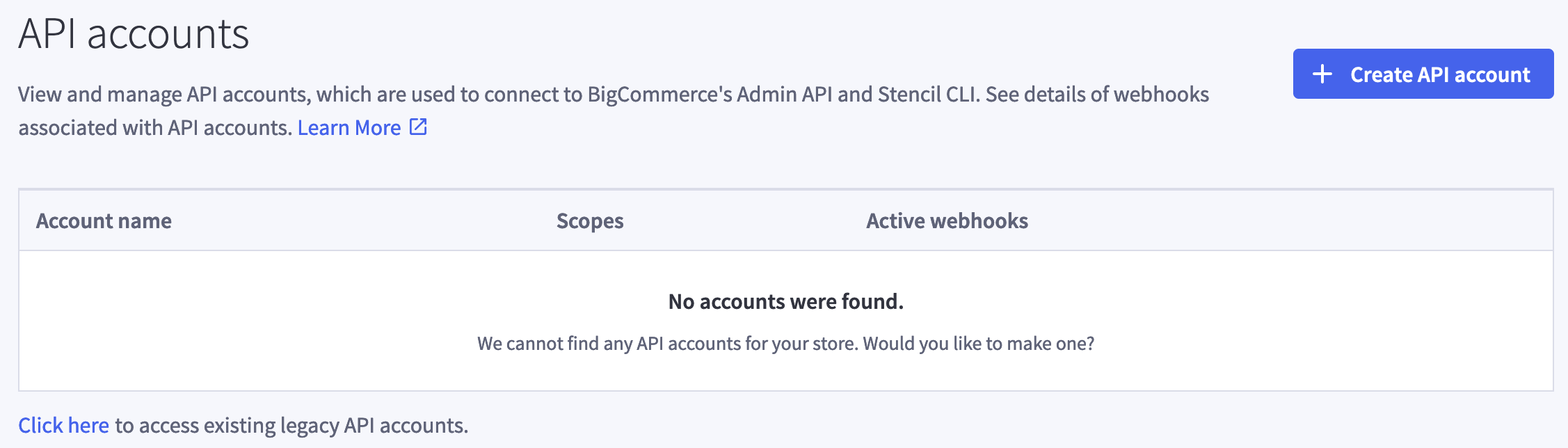
Click "Create API account" and select Token Type "V2/V3 API token":
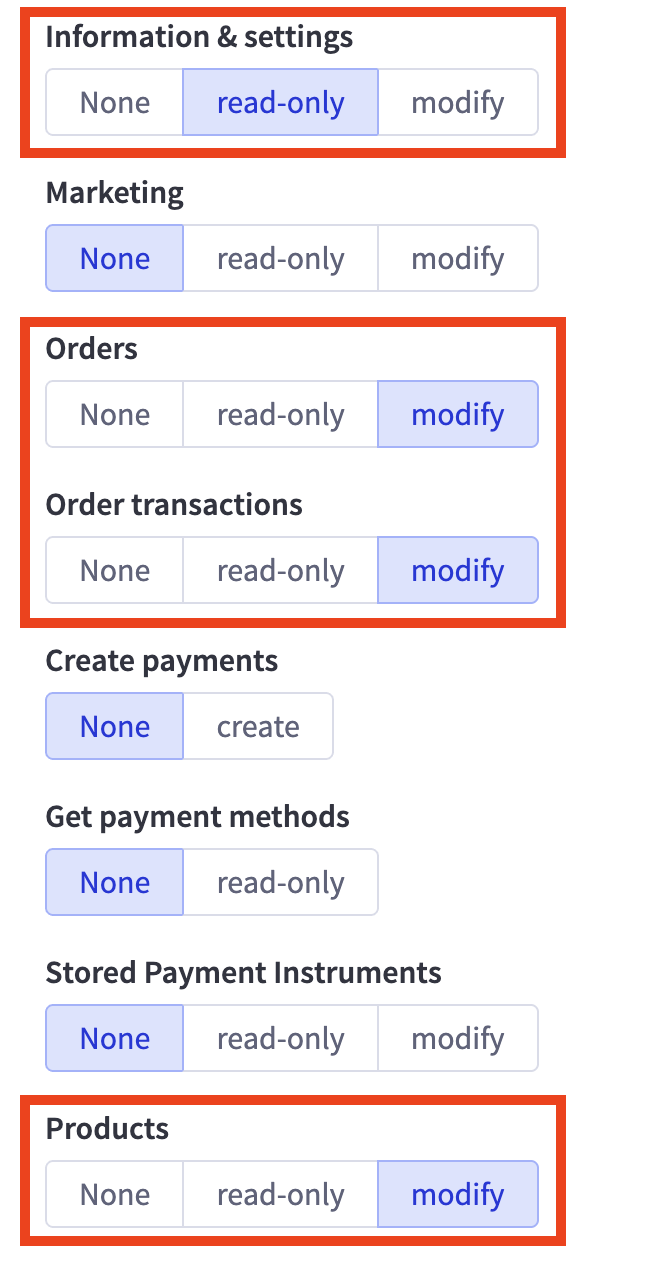
Grant Permissions > The red highlights show this information below (Orders/modify, Order Transactions/modify, Products/modify):
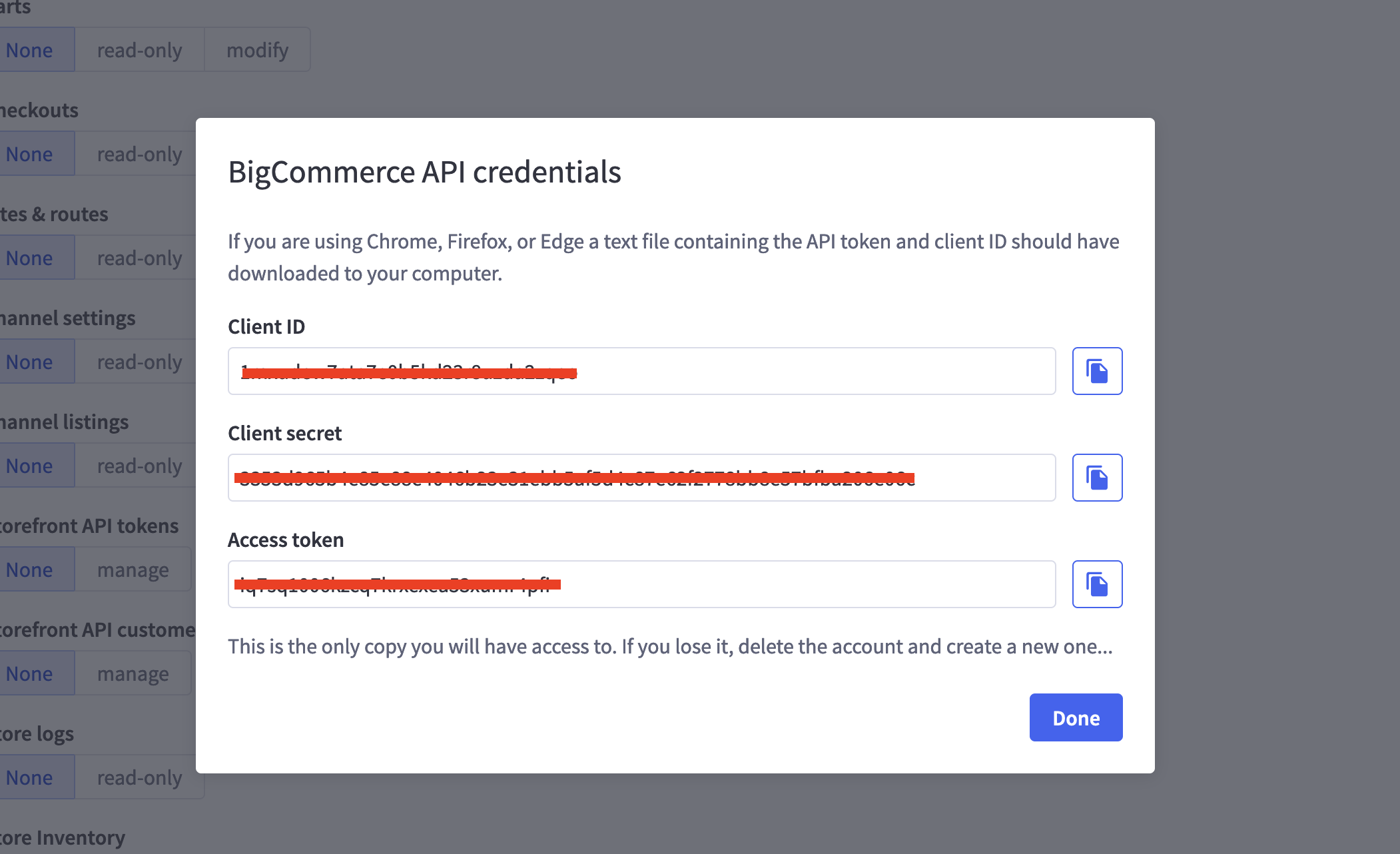
Click save. You will be presented with a pop-up displaying your Client ID, Client Secret, and Access Token:
Navigate to Modern Dropship > Settings > Integrations and copy/paste your Client ID and Access Token, and click Save Credentials:
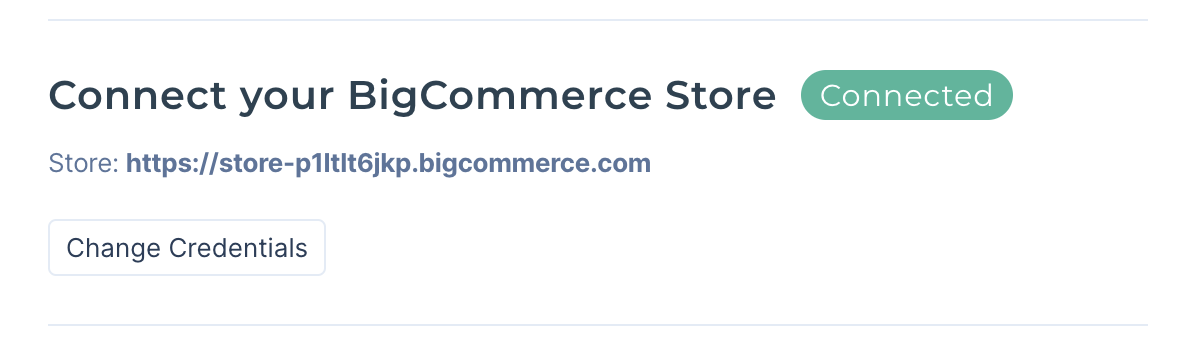
Your BigCommerce Store will now be successfully connected to Modern Dropship:
Tip: Within 20 minutes, your products will be visible within the Products tab.
By default, we will sync active products, inventory counts, and order fulfillments. When your buyer receives or directly submits an order for your product, we will pass that order back into your store so that you can fulfill it.
If you need to white-list our services in your firewall, our requests originate from 34.27.67.179.