
Connecting Through SFTP
Manage your products and orders with Modern Dropship by exchanging files via an SFTP server. We recommend using our hosted SFTP server, but integration with an external server is also supported. An SFTP client, such as FileZilla, is required to connect.
1. Set up your SFTP Connection
You may choose between using either a Modern Dropship-hosted SFTP server or an externally hosted SFTP server.
Modern Dropship Hosted Server (Recommended)
Choose a password and enter it into the "Password" section > Click "Set Password"
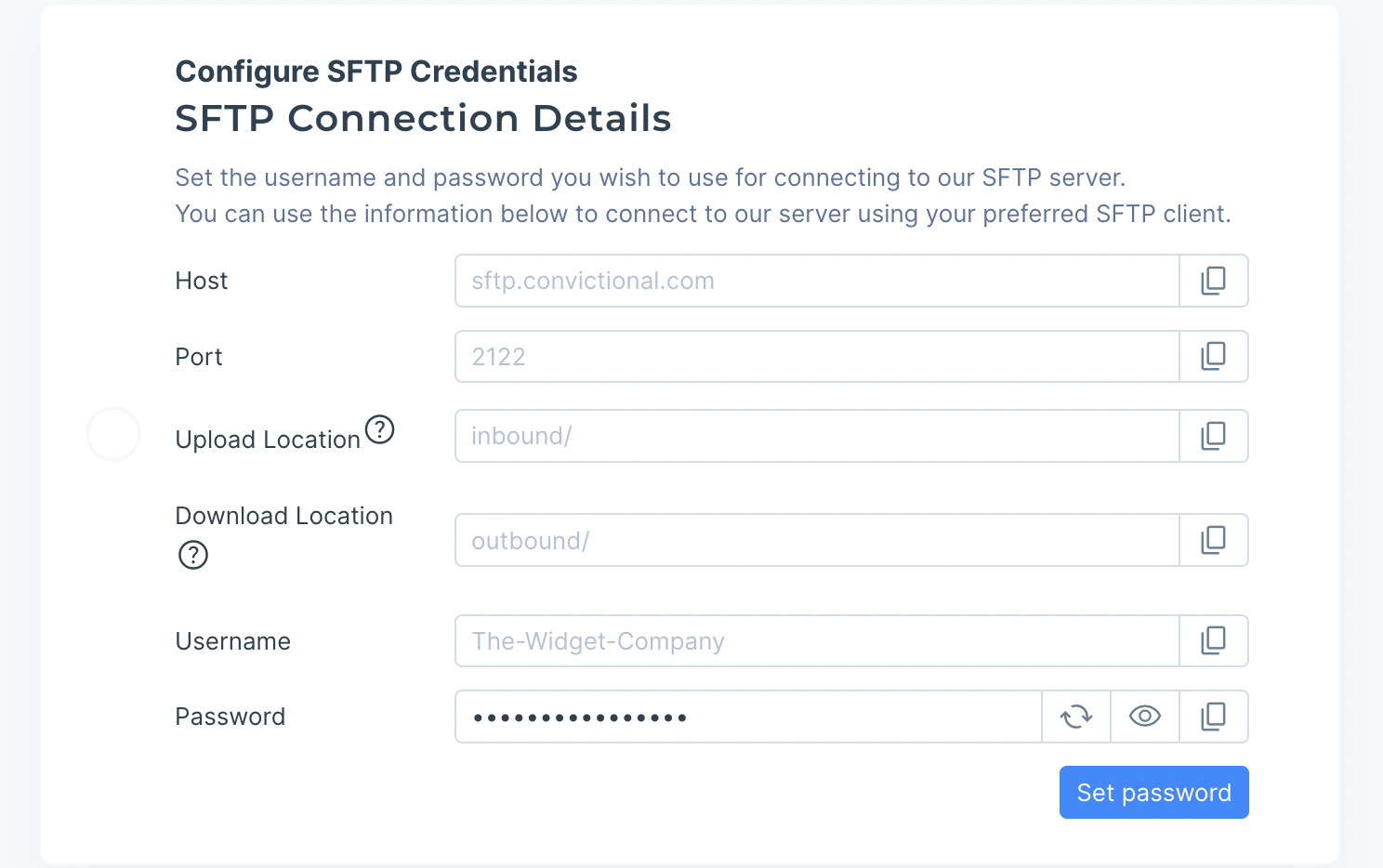
Note: If you forget your password, you can set a new one by entering a new password in the "Password" section > Update Password. Please make sure you update the new password on your end as well.
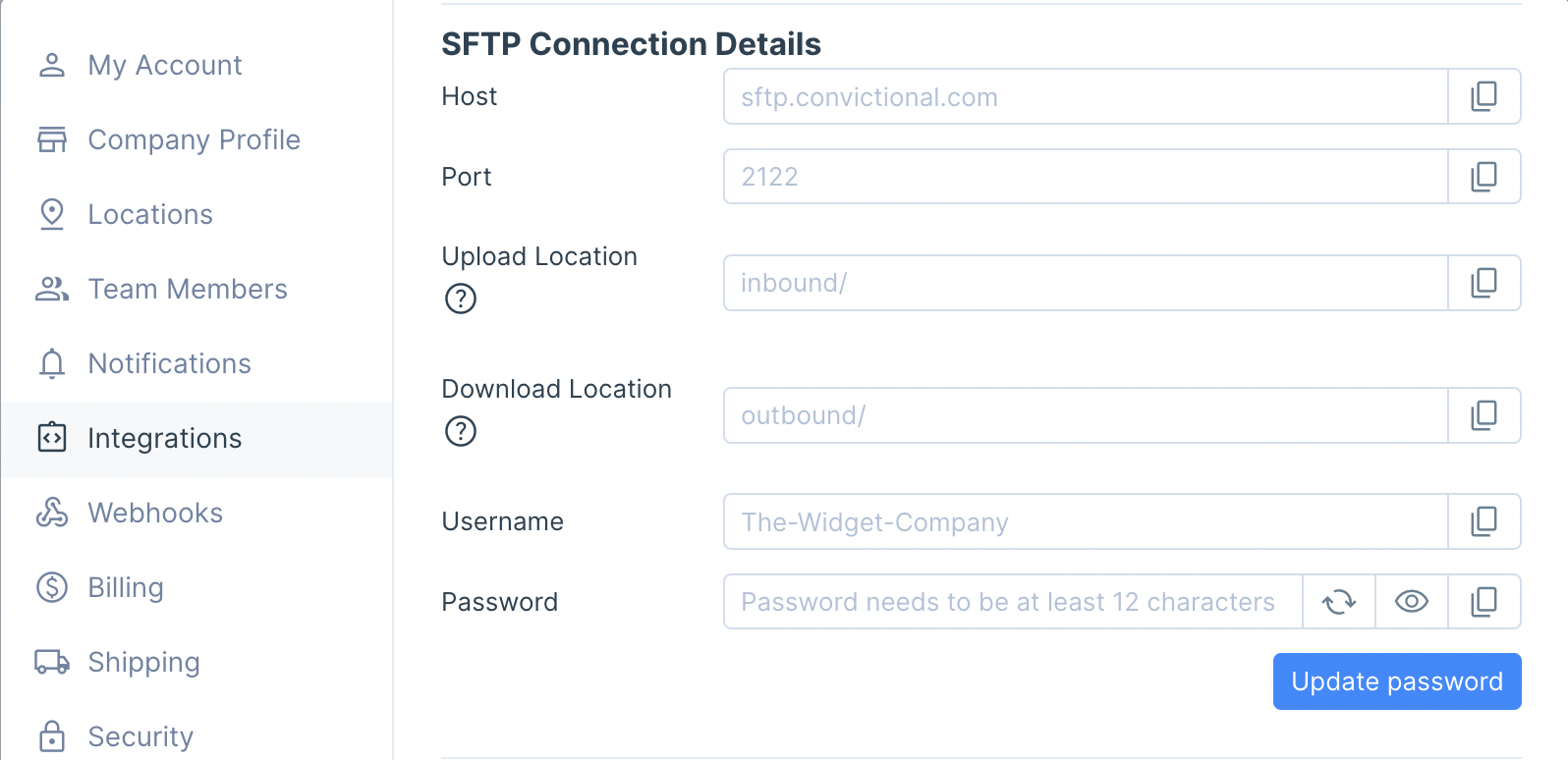
Tip: If you need to white-list our SFTP server, our IP is 35.223.68.247
Externally-Hosted Server
If you've chosen to connect a different SFTP server, you'll need to provide the SFTP information in order for us to connect to that server.
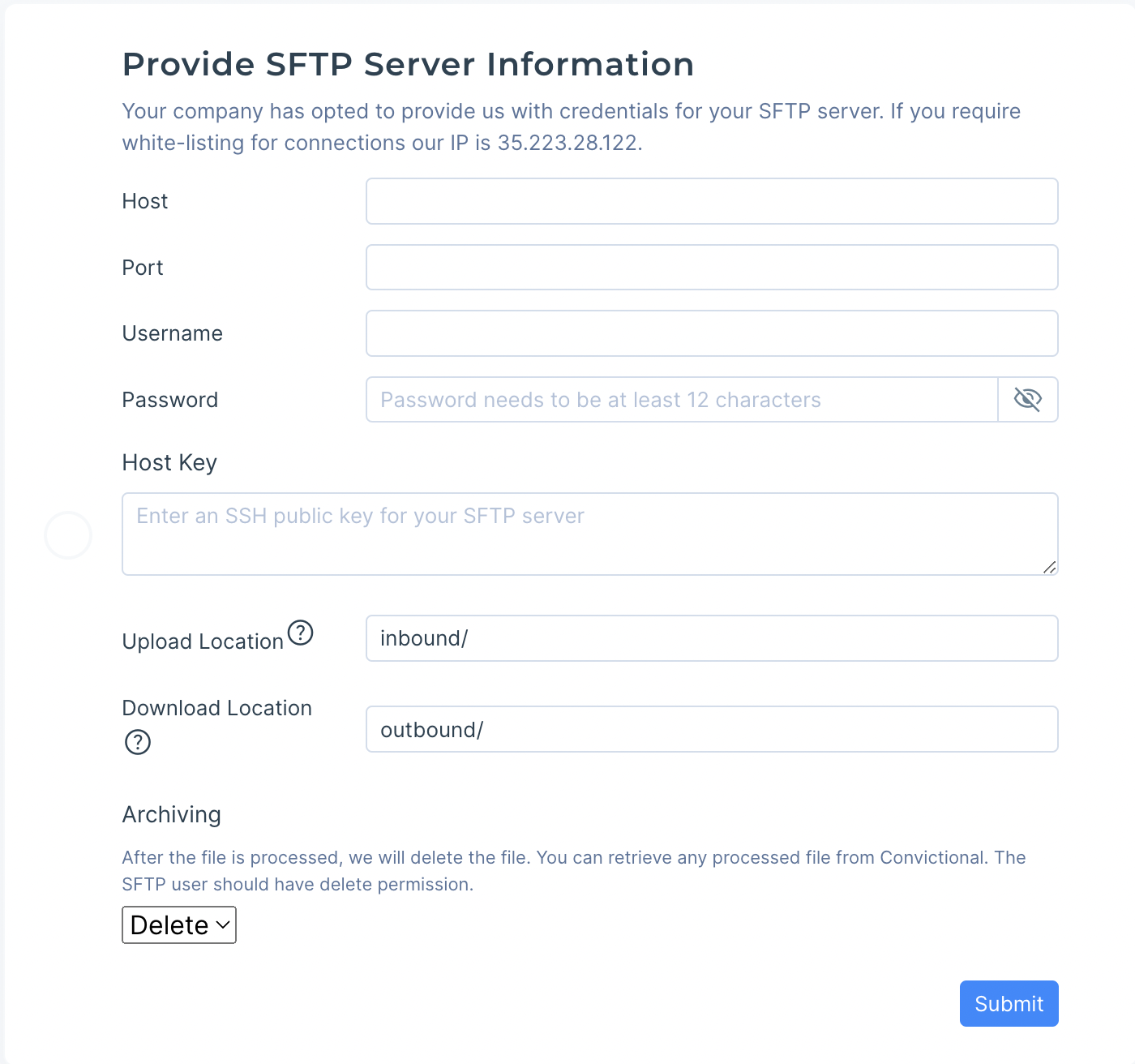
Tip: If you need to white-list our SFTP client, our IP is 35.223.28.122.
2. Upload Products
The following is required for all CSV product feeds:
First line of the file to contain headers followed by the data on the following lines.
A single file containing product and inventory data OR product and inventory data in separate files.
A column which uniquely identifies each product (a product identifier).
When a product has multiple variants there are some additional requirements:
Each variant defined on a separate line using the same product code.
Upload the CSV to the chosen outbound folder - By default this is the outbound/. We recommend using our CSV template for uploading products to the SFTP server.
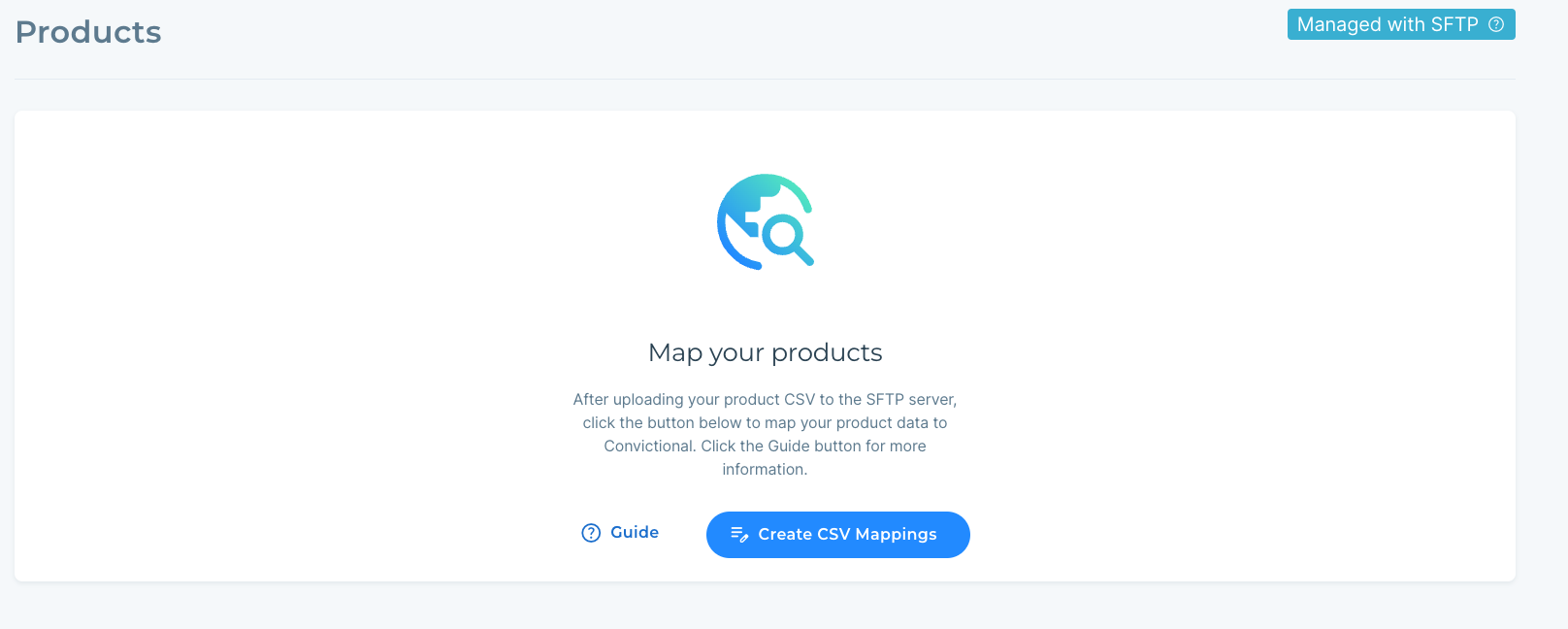
Go to Products section in Modern Dropship > Click "Create CSV Mappings"
3. CSV Mapping
What are CSV Mappings?
A CSV Mapping describes a one-to-one match between each of the product fields described in your CSV file, with the information we need to represent a product internally. You can find the list of product fields we support here. When syncing product details from your uploaded files, we will make use of CSV Mappings to accurately create your products in our system.
You will only need to create CSV Mappings one time, every uploaded product file will make use of these mappings. If your product format changes, you can create a new set of CSV Mappings which will override any that already exist.
Once you have verified your products file is present, you can select your product from the dropdown file and begin mapping the column headers
Select your product file
If your product file uses our standard product CSV template, just select the name of your product file from the dropdown menu. Click "Find File", and we'll take care of the rest.
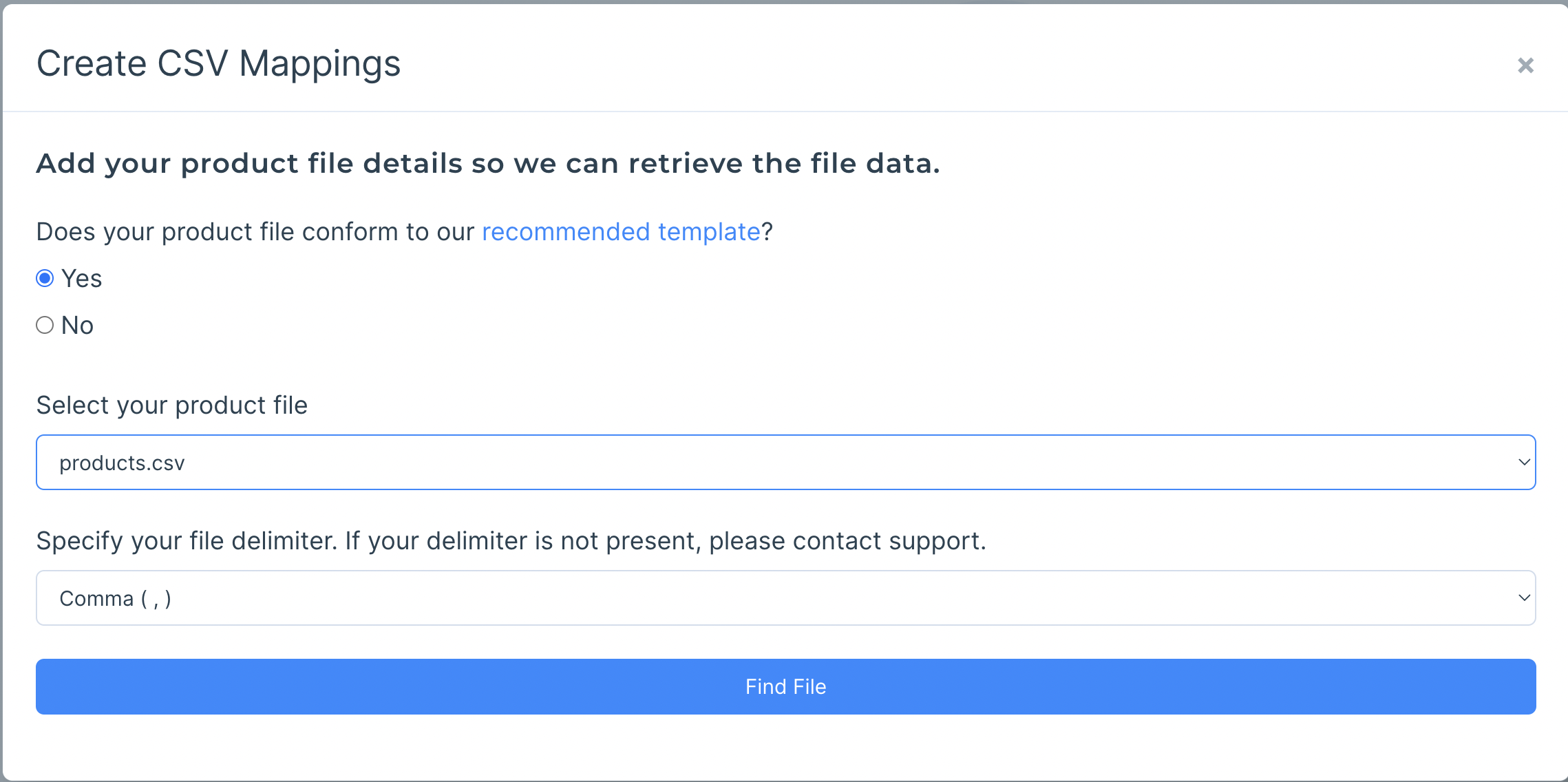
If your product file does not align with our provided template, select your product file, and the delimiter your files are using:
If you do not include inventory levels in your Products CSV (recommended), you will need to upload a separate file including both inventory levels and Product SKUs and select it as your inventory file.
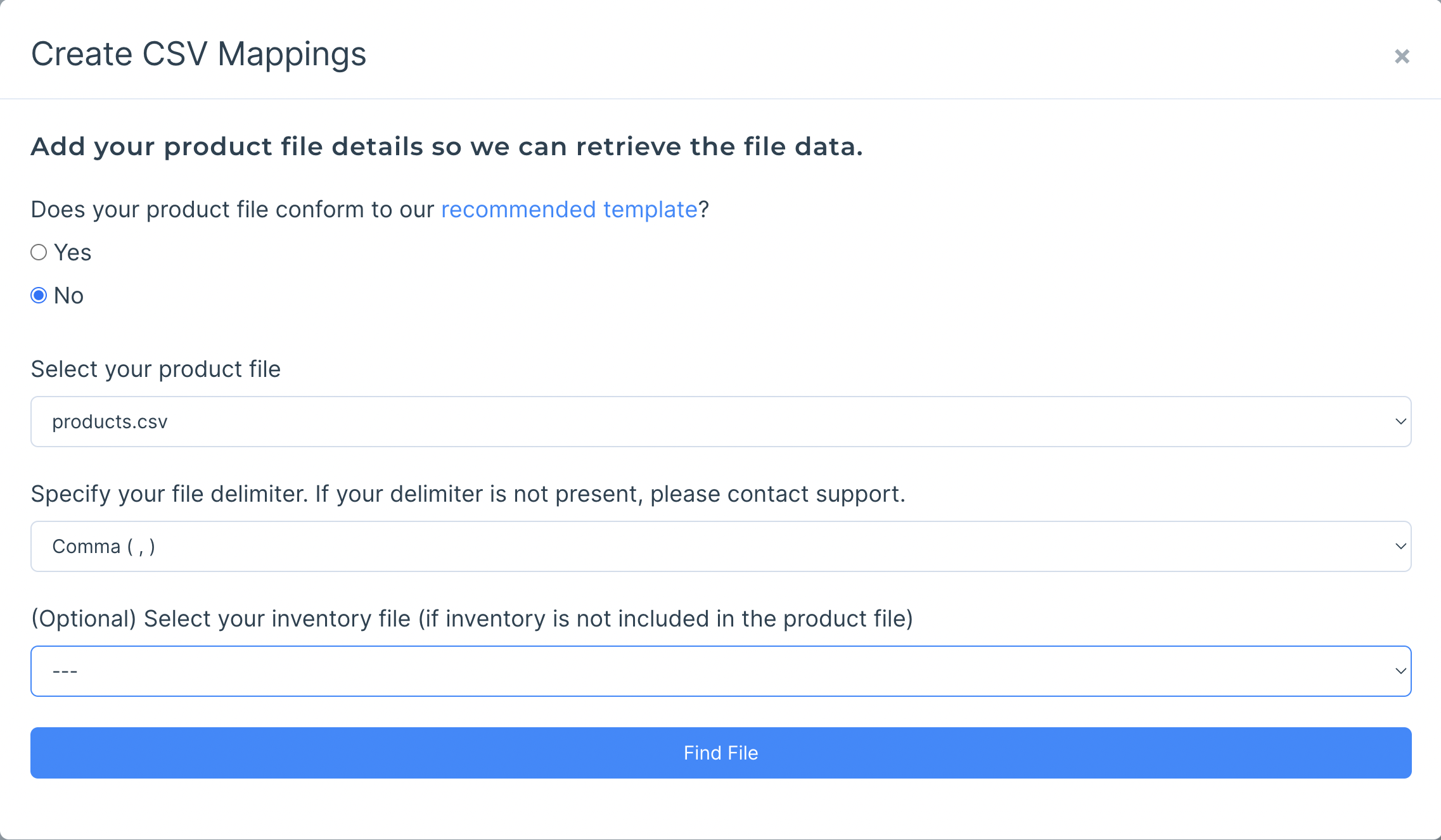
Configure CSV mappings - If not using Modern Dropship template
Choose the appropriate column name from your product file that matches the Modern Dropship field. Please match all fields that are applicable to your products.
Note: It's possible to map multiple Modern Dropship Fields to the same column header. For example, if your products don't have product codes, you can set both
Product Code -> SkuandSku -> Sku.
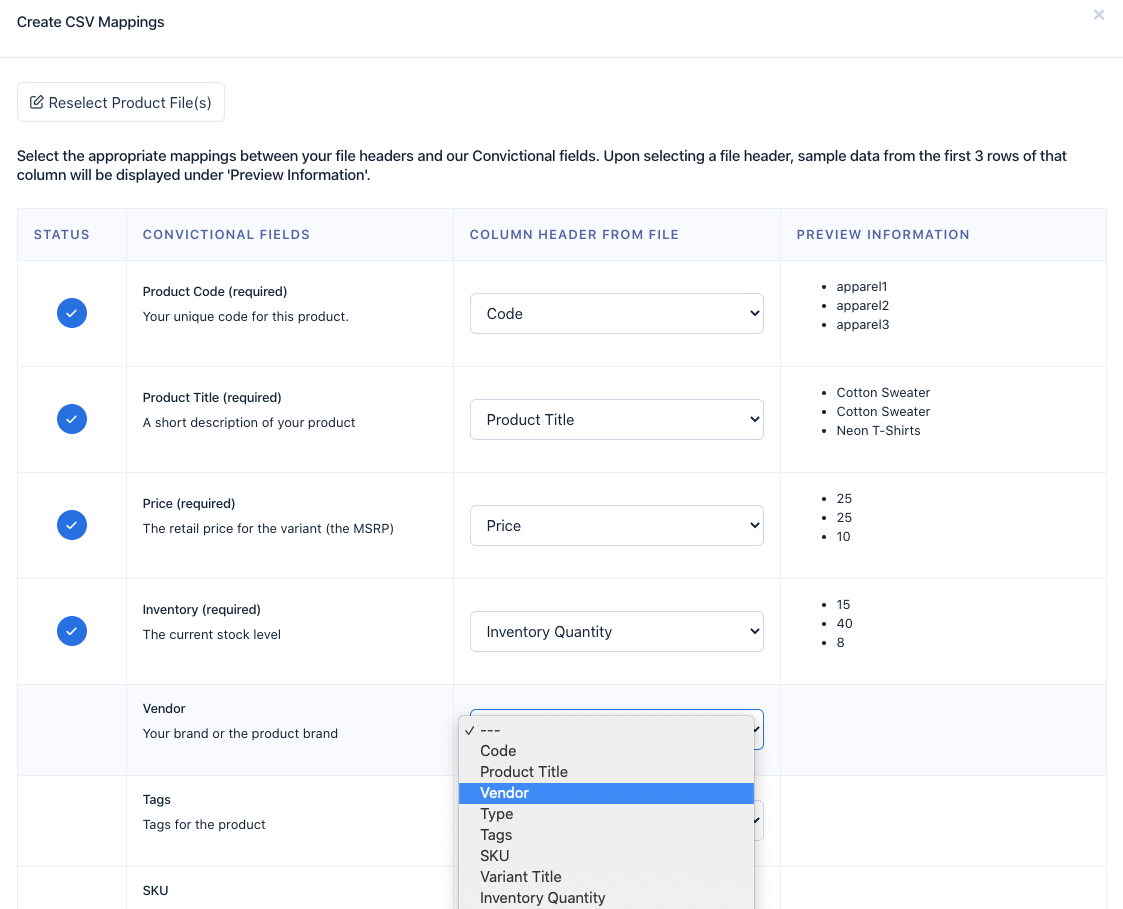
Once you have selected a column header from your product file for each Modern Dropship product field, click the "Submit Mappings" button. Your products will be synced within the next 2 hours.

Updating Product Details
Make edits to your CSV Product file
Upload your file to the same Outbound folder. We require that the product file name be the same as the one chosen during the CSV Mappings process. If the names do not match, your file will not upload.
Updating CSV Mappings
If your product file needs changes, such as the addition/removal of columns that were used in your CSV Mappings, please contact support@moderndropship.com.
CSV Mappings Errors
The following table contains common CSV Mappings errors along with suggested solutions to resolve the errors. The errors typically relate to problems in your product and/or inventory file(s) that prevent our system from ingesting your product data.
Error | Solution |
Failed Integer Conversion | This field expects only an integer value. Remove any non numeric values. |
Failed Number Conversion | This field expects only a numeric value. Use '.' for decimal points if needed. Remove any non numeric values. |
Invalid field Count | The specified row is missing column value entries. Each row must have the same number of values as the number of column headers. Empty column values must still be present. Example of an empty value for a comma (,) delimited file: "value",,"other value" note the empty value in between "value" and "other value" |