
Actions and Action Templates
Actions are a great way to request an action be completed by a partner.
Common use cases include:
Onboarding Steps for new partner invites
Request documents from existing users
Signing agreements with a partner
Providing a partner with Guides and How to's
What is the difference between Actions and Action Templates?
An Action is a single task assigned to a single company, while Action Templates let you reuse a specific set of tasks across multiple companies.
Example: If you want marketing materials from a particular partner, you can assign an Action requesting that file. If you want marketing materials from all new partners, you can create an Action template and mark it as "Apply to New Partners". When each new partner signs up for Modern Dropship, an Action is automatically created and assigned to them.
Creating Actions
Navigate to the Partners page. You will see a list of existing partners you have invited.
Select the partner you want to create an action for and scroll to the bottom of that partners page. You will see either "Get Started with Actions" or a list of previous Actions created.
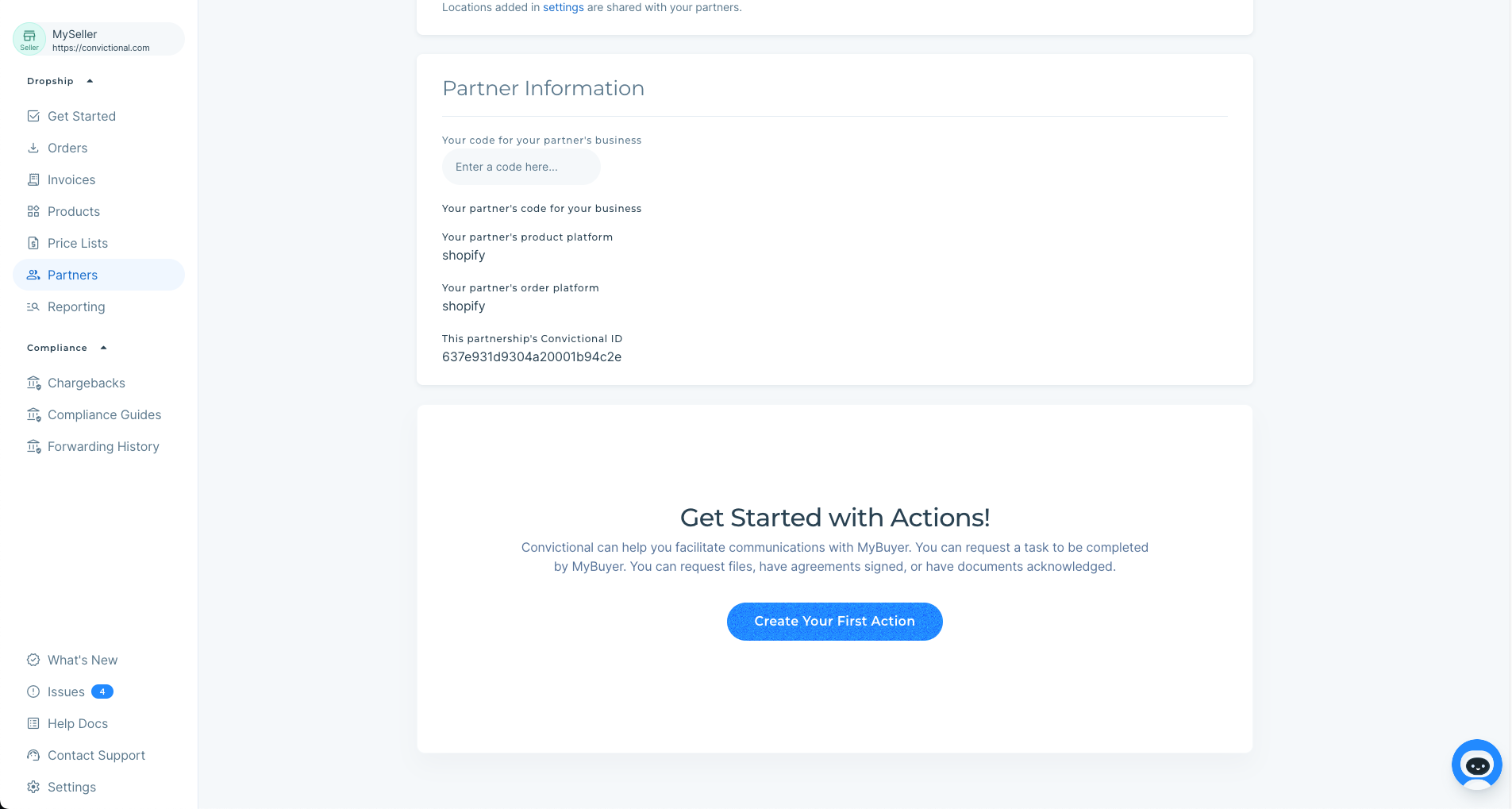
Click on the button that says "Create your first action". A modal will appear on your screen for creating the Action.
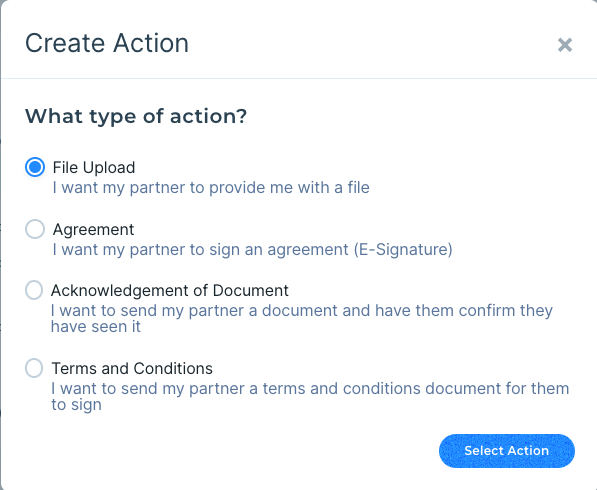
Select the type of action you'd like to create from the list shown in the modal:
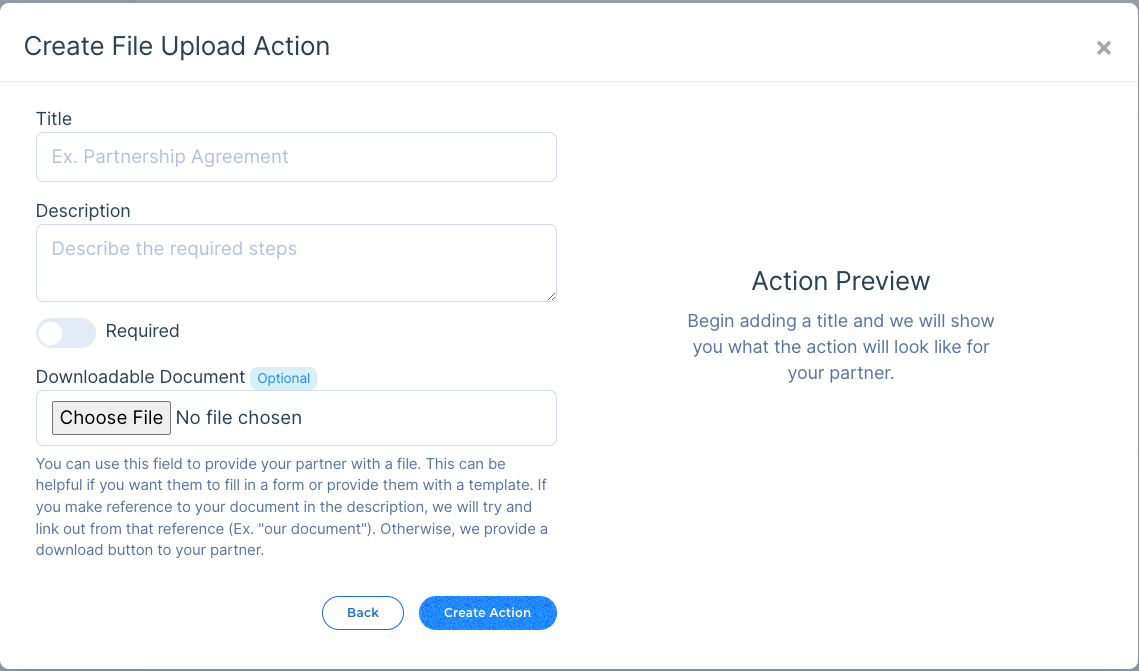
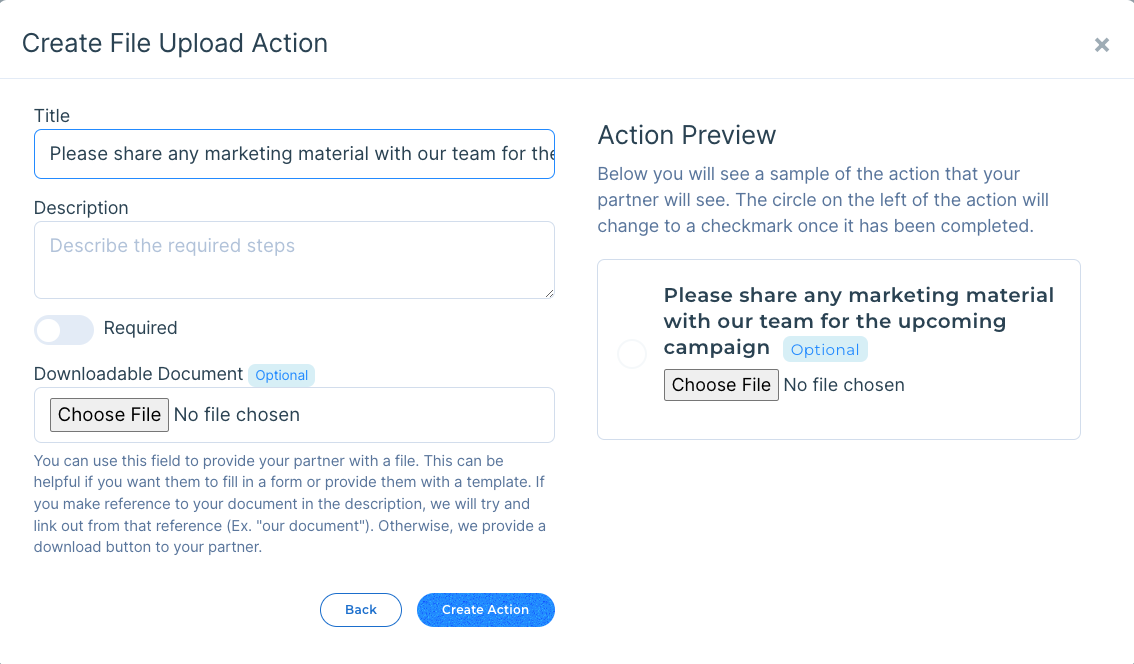
Once you proceed with the action type you will see a form for creating an Action. On the right, it will preview anything your partner will see.
Note on Agreements
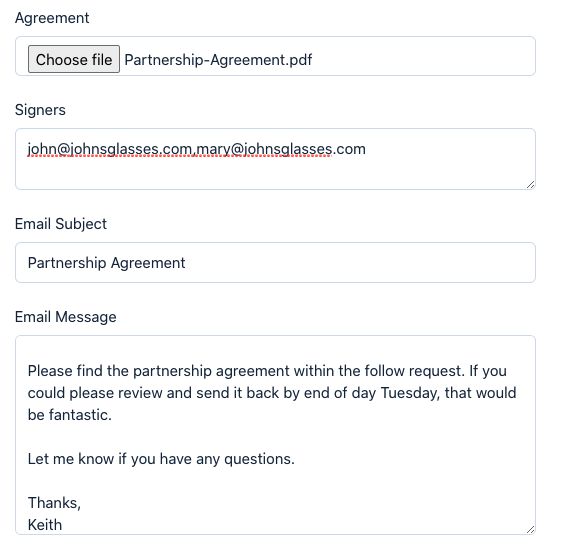
We are required to contact the signers via email to inform them of the request for signature. Once again, we provide you with the maximum amount of customization to ensure the message is clear.
The Agreement must be in PDF format.
The Signers is a list of comma-delimited emails.
The Subject and Message is what will be emailed to your partner.
When using Templates - only field that changes is "Signers" which uses the partner invite email, which is whoever you send the partner invite to.
Creating Action Templates
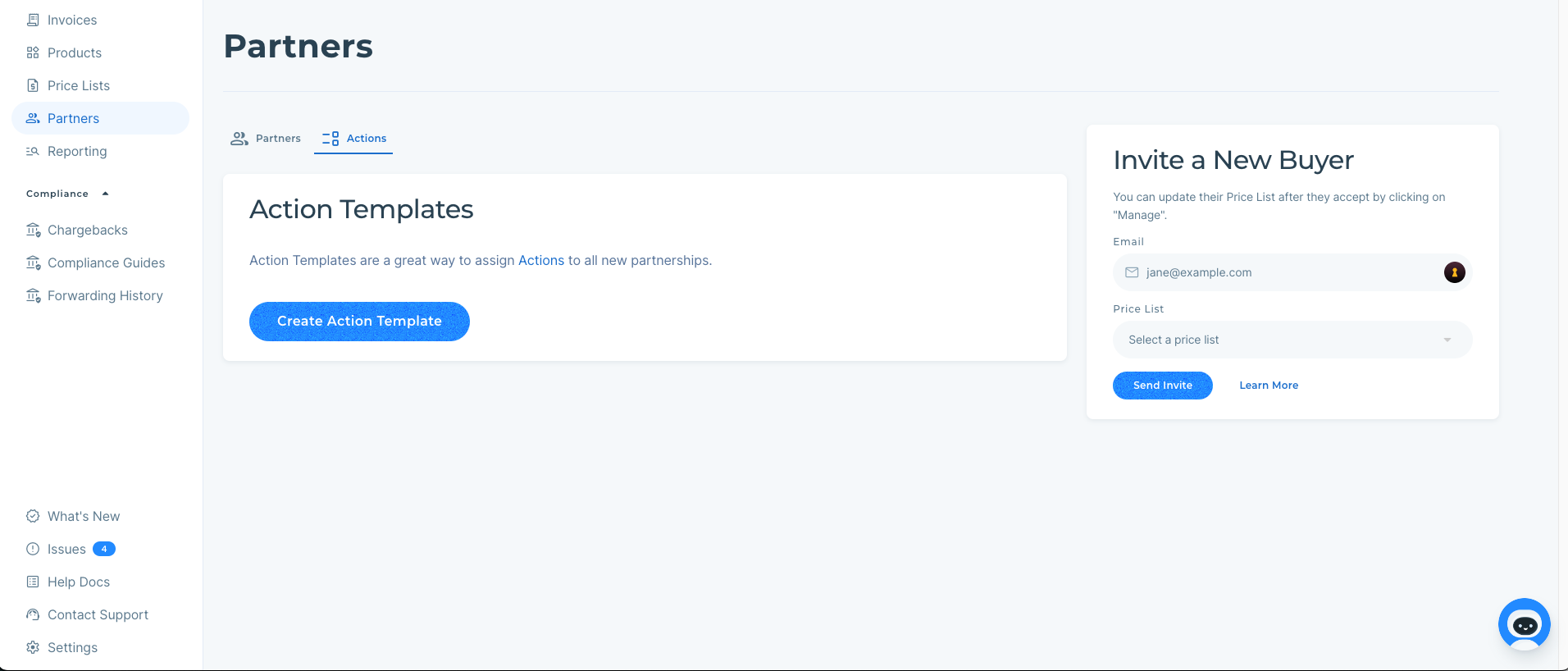
A lot of creating Action Templates is similar to creating Actions; be sure to read through that section first. (Note: If the company has already set up on Modern Dropship, these actions will not be assigned to them, only to new and unaccepted invites):
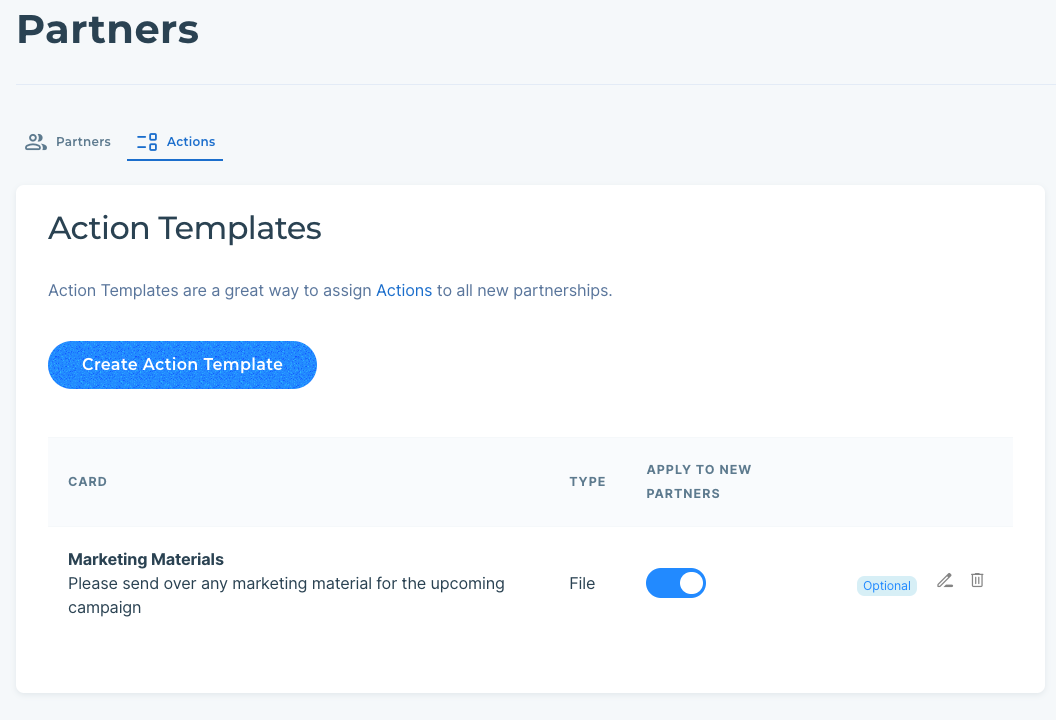
Once the Action Template is created, you can find it on your partners page:
Completing Actions
Your partner will find actions assigned to them in two spots: In the actions tab on the Partner page and on your specific partner page:
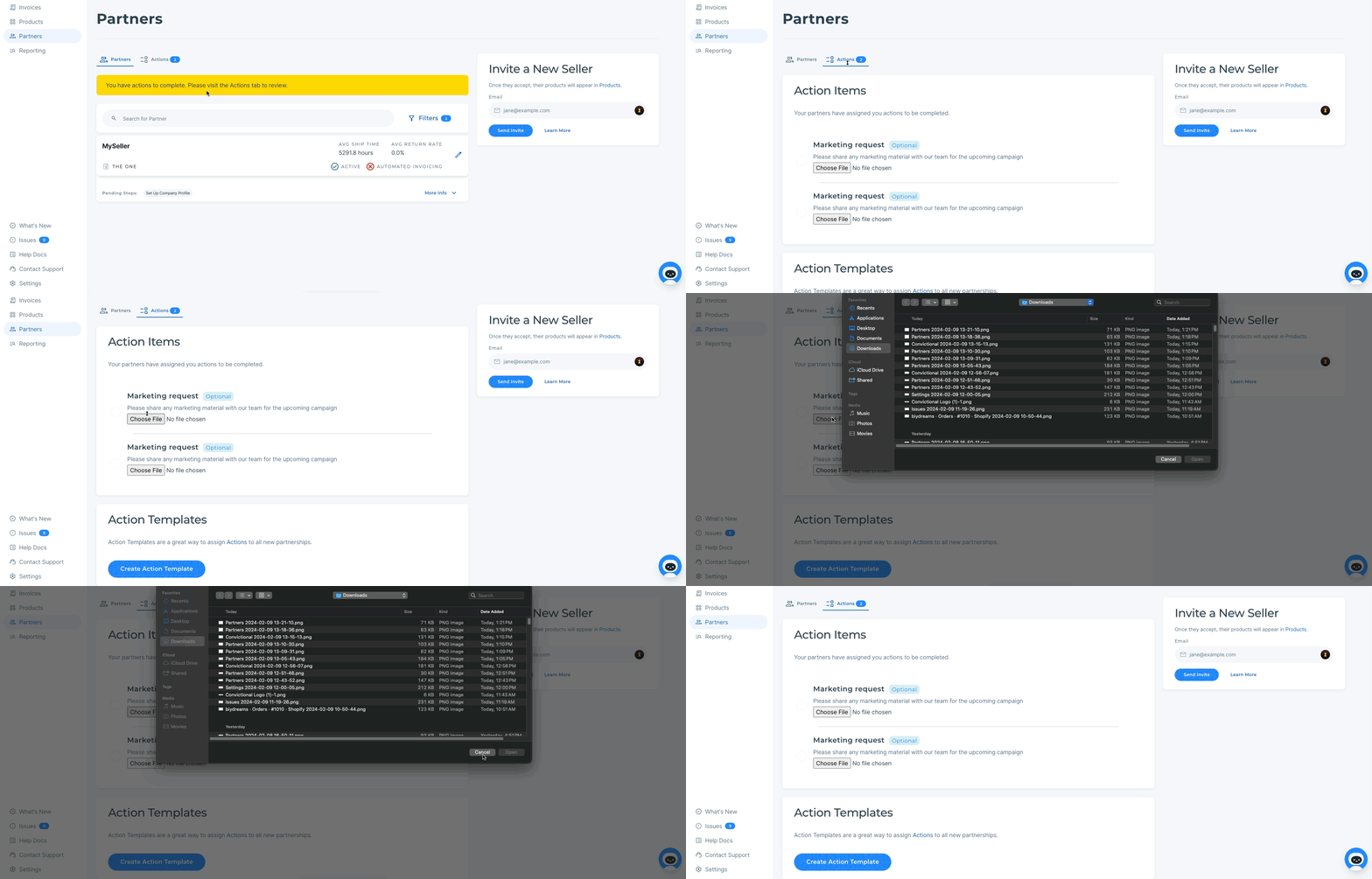
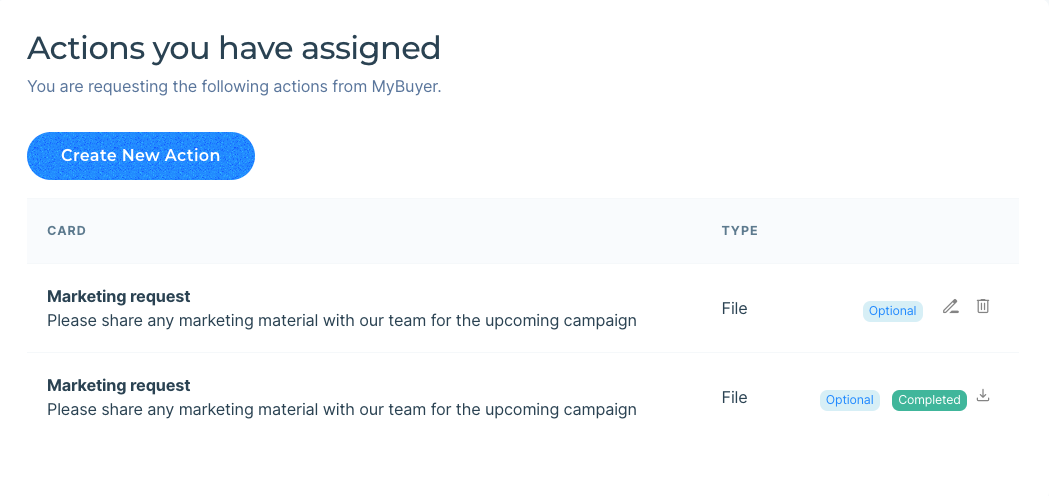
Once an Action is completed on either page, it will change to checked. When the partner reloads the page, they will not see that Action again (since it's completed). They can find both completed and incomplete actions on the specific partner page:
Agreement
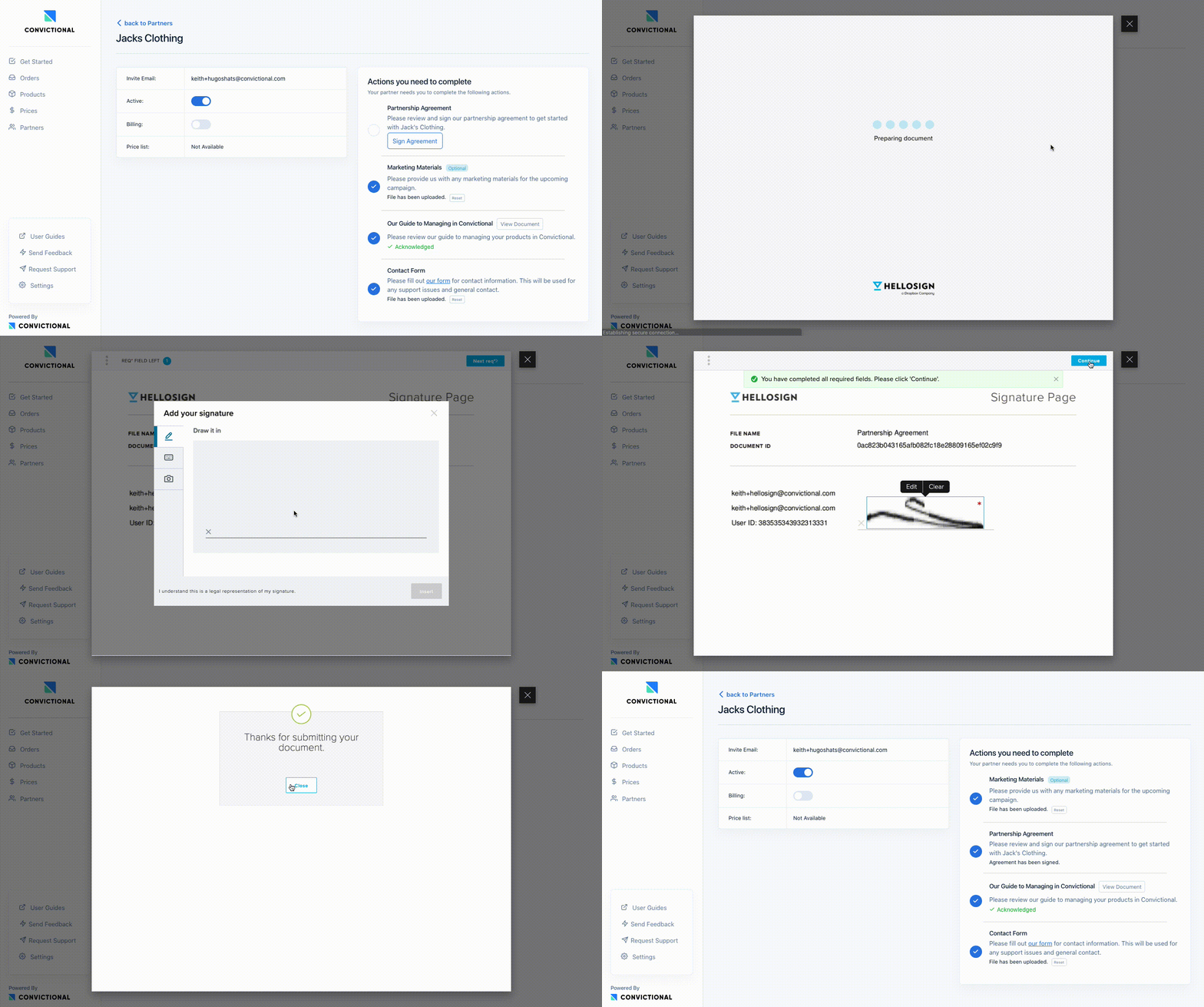
Below you will see the agreement flow that your partner would see. We are using a test document for this brief demo. Your partner will not see the warning about this being a legally binding document.
Deleting Actions and Templates
You can remove action templates by clicking the delete button on the right side of the list of Action templates. This will not remove the actions that have been created from this template:
