
Handling Returns
Returns are a fact of life when you drop ship on behalf of a retailer. The main considerations are: how to communicate with your trading partner, how to deal with inventory coming back, and what to do about payment. This guide walks through each of those areas and discusses best practices.
Identifying Returns
Returns are initiated in most cases by the consumer. When this happens, the consumer contacts the retailer to process a return. Often this involves a returns portal that is hosted by the retailer themselves or using a returns management platform (like Loop Returns, Narvar, Returnly, etc).
Handling Returns
Once this is established, follow the next three steps:
The Retailer needs to refund the consumer according to their policy.
The supplier needs to refund the Retailer/Retailer. If Stripe was used to generate the original invoice, then this is automatic.
You (the Supplier) may need to provide a return packing slip to the Retailer if you are to intake the returned product to your warehouse. Alternatively, your Retailer may provide a return packing slip to the customer that includes your shipping address.
You (the Supplier) need to receive the products back to your original shipping address.
Refunding the End-Customer Payment
Retailers can issue refunds to their end-customers for the returned item as per their normal process. This is often handled by the returns platform directly, such as Loop Returns, Narvar, or Returnly.
Retailer Requesting Returns
Retailers can request returns via Modern Dropship for any order line item that has been fulfilled and has not already been returned.
The "Request Return" button displays after clicking the three dots beside the order line item.
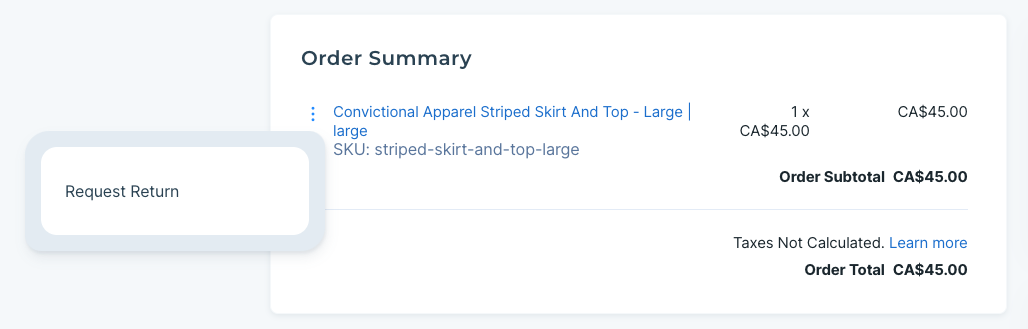
Suppliers are notified once a return is requested. A Supplier then can decide whether to accept or reject the return (or a Supplier may automatically accept all returns for your partnership). Details are below.
Suppliers Accepting Returns
Suppliers have the ability to accept or reject return requests from their Retailers (retailers). When a Retailer requests a return for an order, this request becomes visible to Suppliers on the Modern Dropship orders page. There is also an email sent to the Supplier.
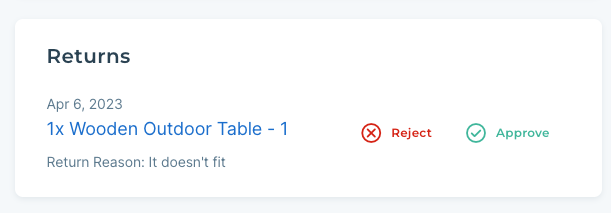
Approving the return creates a return in the Modern Dropship system. This triggers a refund to the Retailer. Suppliers can share an RMA code with the Retailer to send back the goods.
Rejecting the return does not create a return in the Modern Dropship system. A reason for the rejection is requested. This rejection reason is then shared with Retailers to provide context on why the return was rejected by the Supplier.
Completing Returns
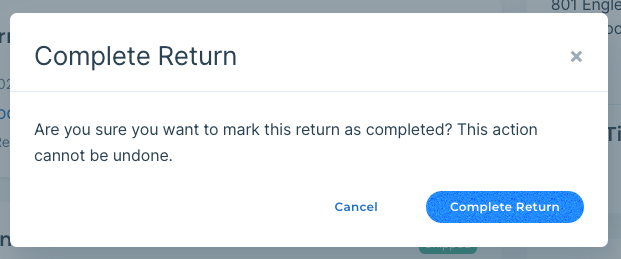
Once the goods have successfully arrived at the Supplier's warehouse and passed inspection, the return can be marked as completed.
Return Settings for Suppliers:
Automatically Accepting Returns
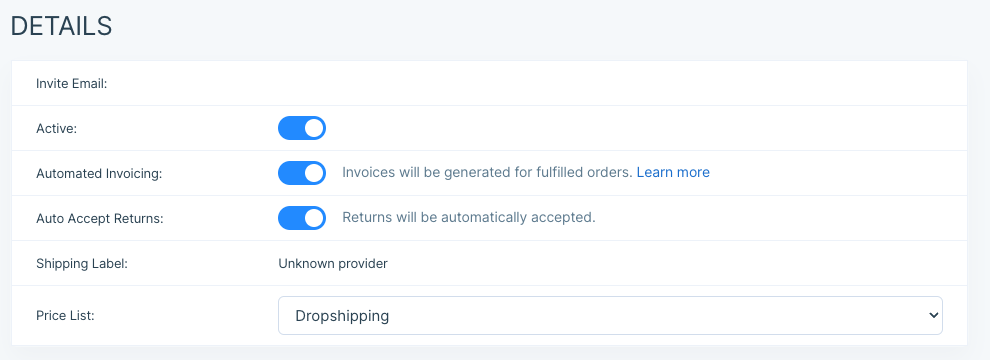
Suppliers have the ability to automatically accept returns requests from their Retailers. This is a setting available on the Partners page of Modern Dropship.
Syncing Settings
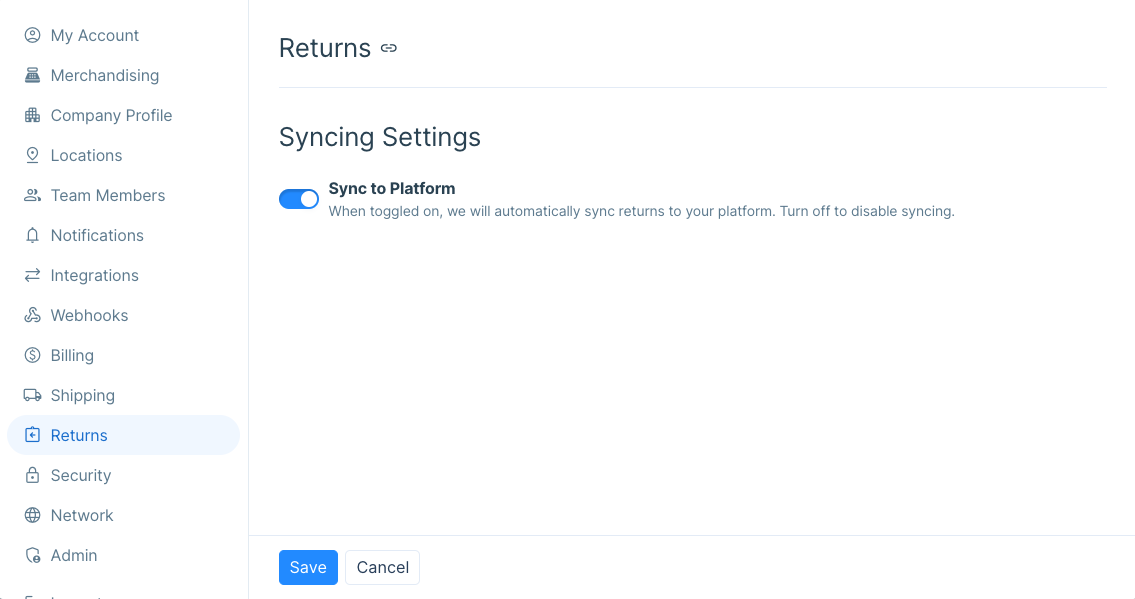
If you are integrated with Shopify, you will have the option set to sync returns to your platform turned on by default. This means that refunds requested by your partner will sync through to your Shopify Admin, and you can mark them as complete from there. This setting is available in the Returns section of the Settings.
Return Settings for Retailers:
Syncing and Refund Settings
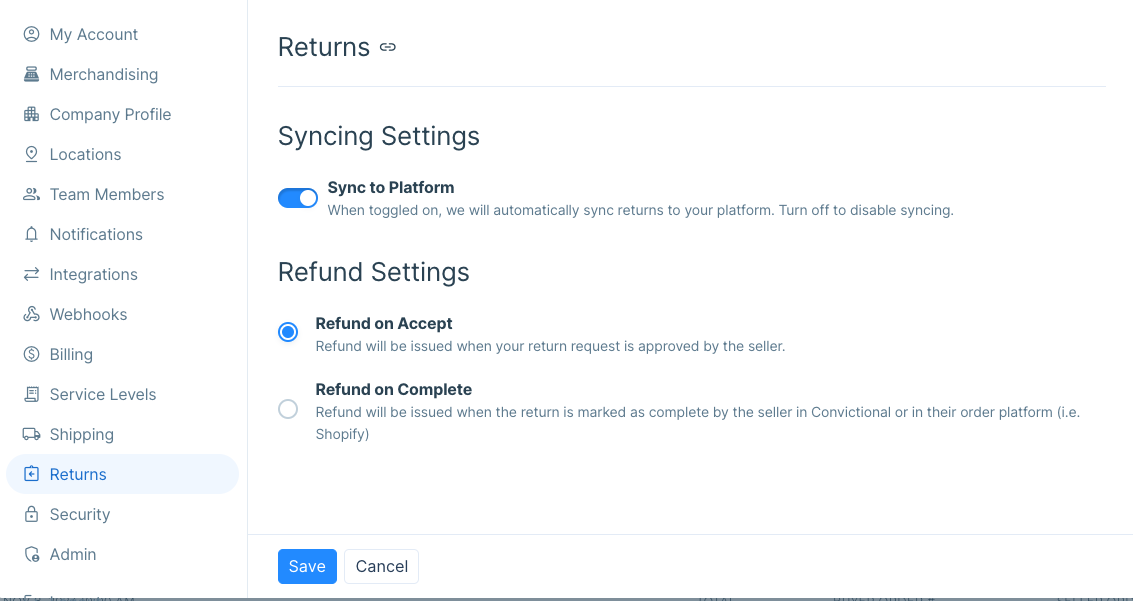
Syncing setting - If you are using Shopify as your ecommerce platform this setting will be turned on by default. Any time a return is requested in your Shopify Admin we will sync that status to the order in Modern Dropship.
Refund setting - This setting will control when your customer gets a refund for the funds transacted through your ecommerce checkout. You can choose to either refund the order total to your customer when the return is accepted or completed by your partner.
Refunding the Retailer Invoice
Once a return is marked as accepted by the Supplier, Modern Dropship will refund the original invoice that was sent to the Retailer (the retailer). In the event that a refund needs to be triggered manually for another reason, Suppliers can follow the walkthrough below.
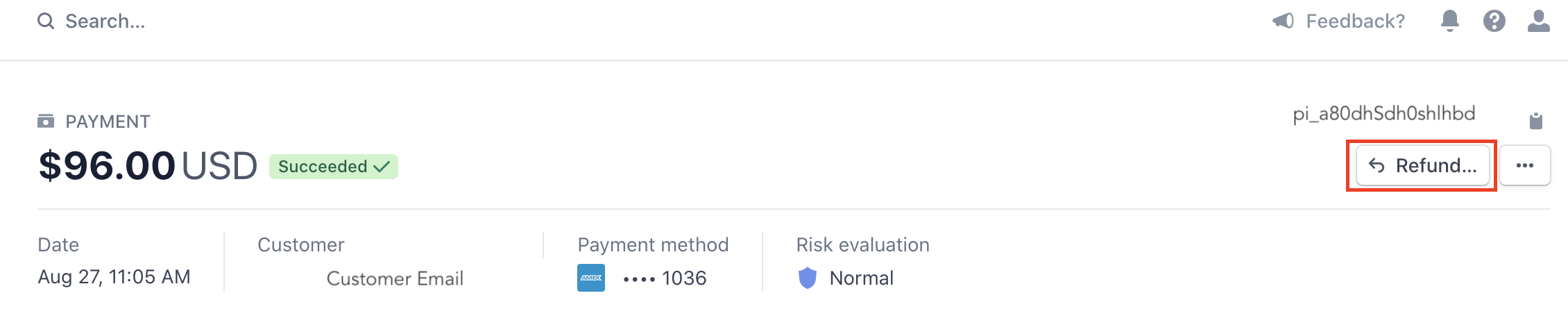
If you want to refund the payment for the order to the retailer, or if you are the retailer and you want to initiate a refund with a supplier, you can do so by going to your Stripe Dashboard. You will then arrive at a screen like the one below:

In order to refund an order, click on that specific order, and the click "Refund Order" on the right-hand side of the screen. This will then trigger the wholesale margin (previously paid by the Retailer) to be refunded back to their account.
Suppliers Handling Returned Inventory
Retailers will share your warehouse address with the end consumer (or may ask you for a return packing slip)
Once the return arrives at your warehouse, you can decide whether to sell or scrap the product
If you decide to resell it, you will need to enter this into your ecommerce platform's inventory count. Modern Dropship will then sync in the updated inventory quantity within the hour.