How to Set Up Pricing
Price Lists let suppliers control which products they offer to retail partners and how those products are priced. By creating a Price List, you can apply margins or discounts, manage currency and rounding rules, and keep pricing consistent across partnerships.
What is a Price List?
A Price List defines how your products are priced for a specific retail partner. It controls which products are available to that partner and how pricing is calculated, including margins or discounts, currency, and rounding rules.
Setting up a Price List
Log in to the Modern Dropship app.
Navigate to Price Lists and click New Price List.

Enter a name for the Price List (for example: Retailer – Q2 Pricing).
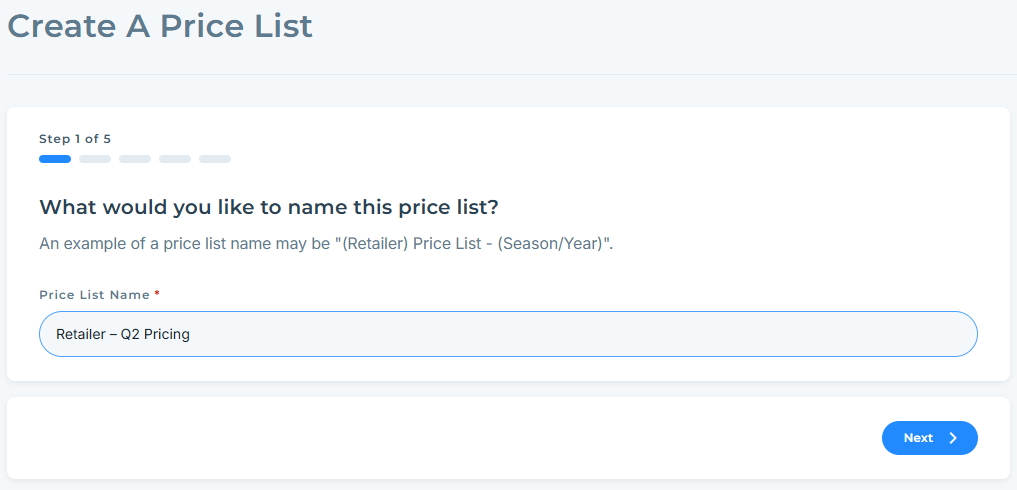
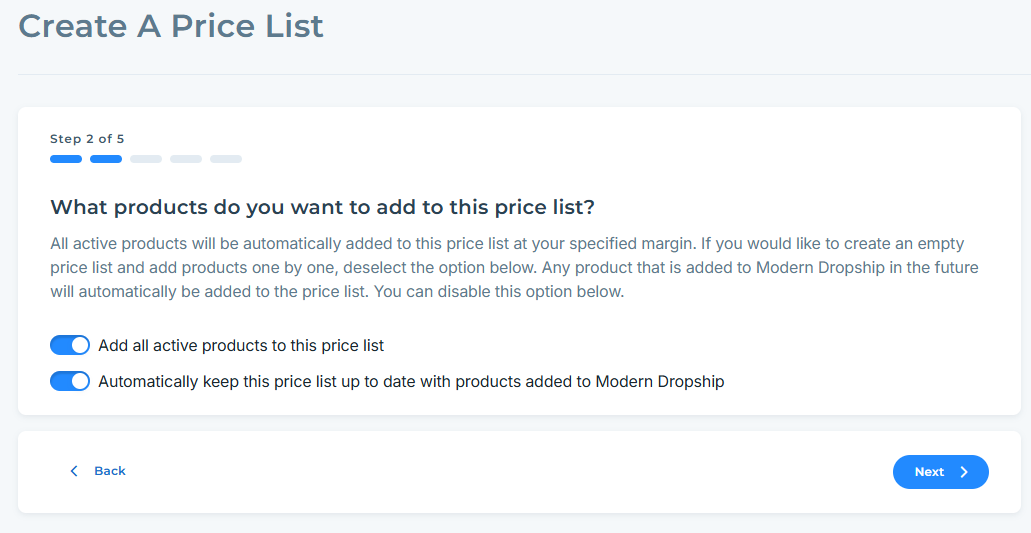
Choose whether to include all active products by default.
Add all active products to this price list - this setting is used to control what SKUs are automatically added to the price list when it is created. If all products in Modern Dropship are marked as Active, they will all be added to the list, if none of them are, the list will be empty.
Automatically keep this price list up to date with products added to Modern Dropship - this setting is used to include new products in the price list automatically. This is a good option if you want to make all SKUs in your catalog available for your partner to list on their storefront. This guide will walk you through the setting in more detail.
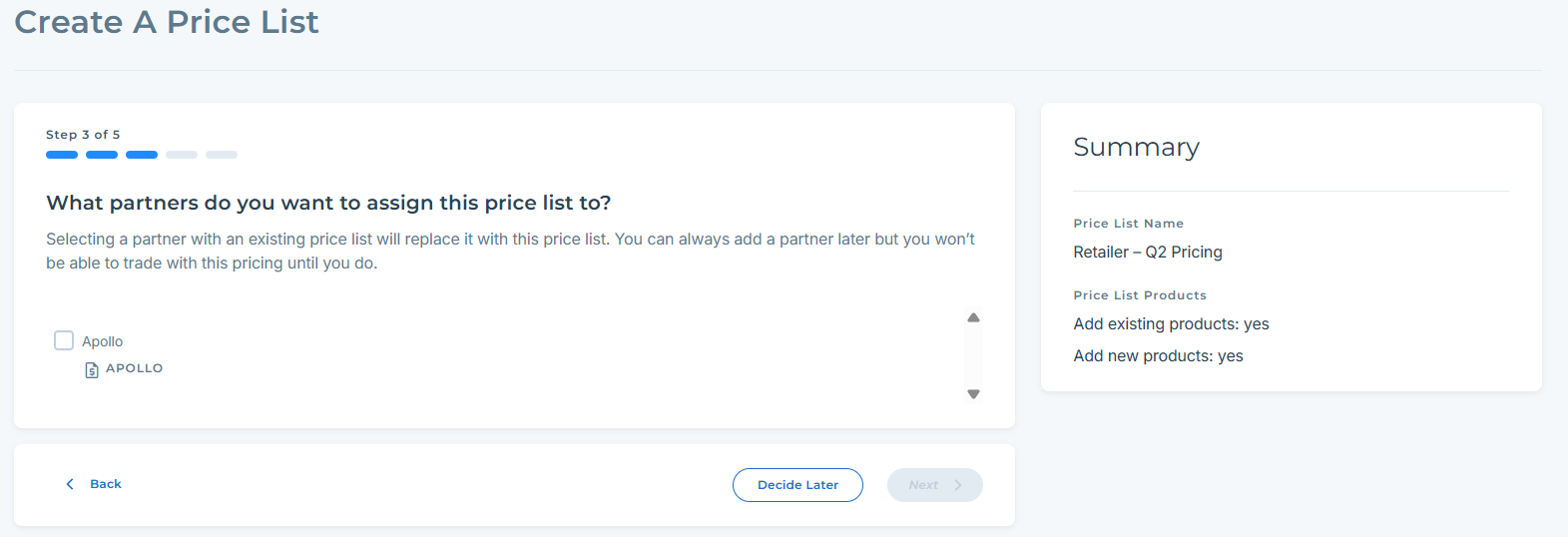
Once you have titled the price list, you will see a list of existing partners and the price lists that are currently assigned to them. If you don't yet have any partners, this list will be empty. You can choose to automatically assign the price list once it is created by selecting the desired partners in this list, or you can choose to assign the list at a later date.
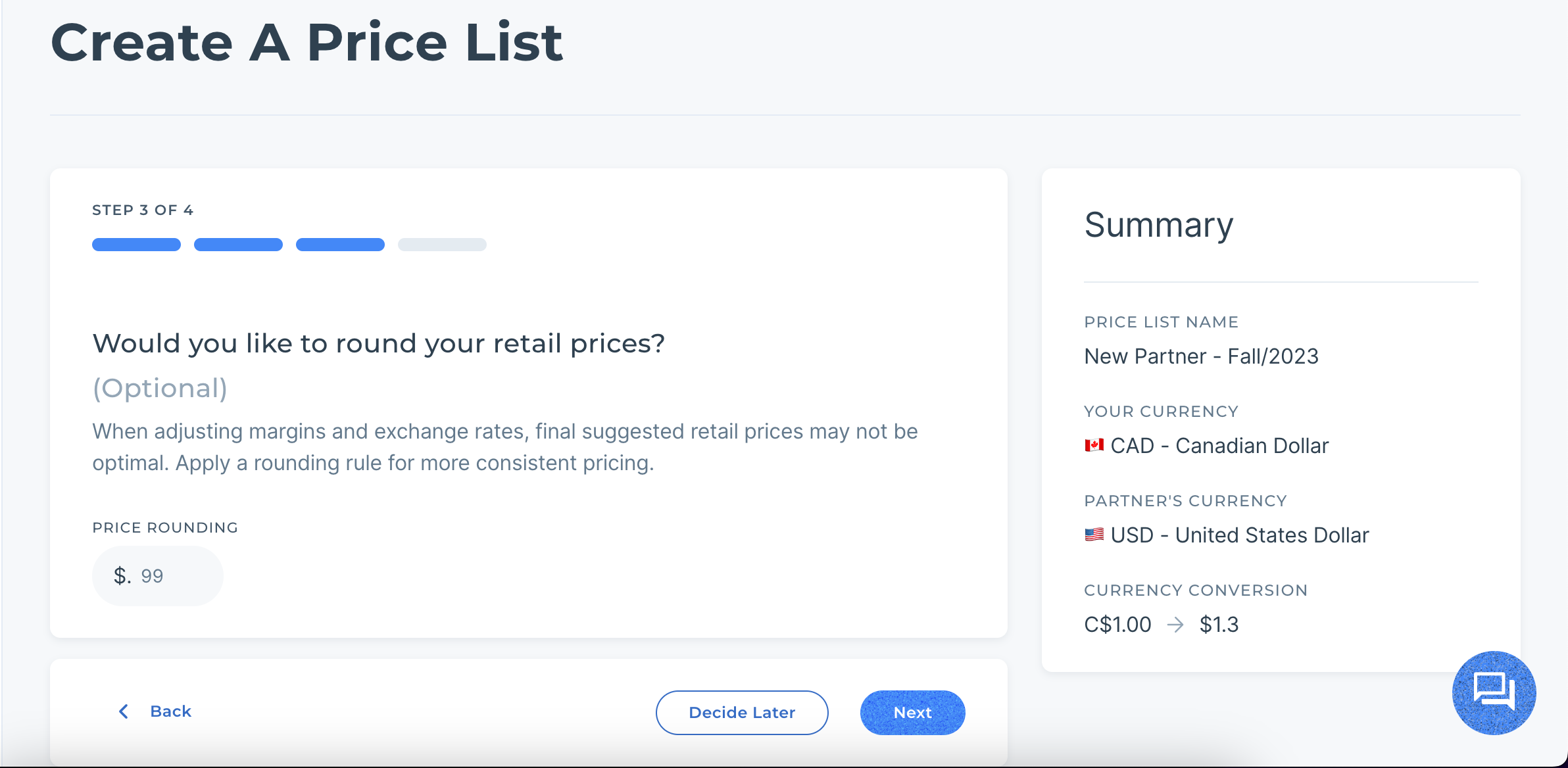
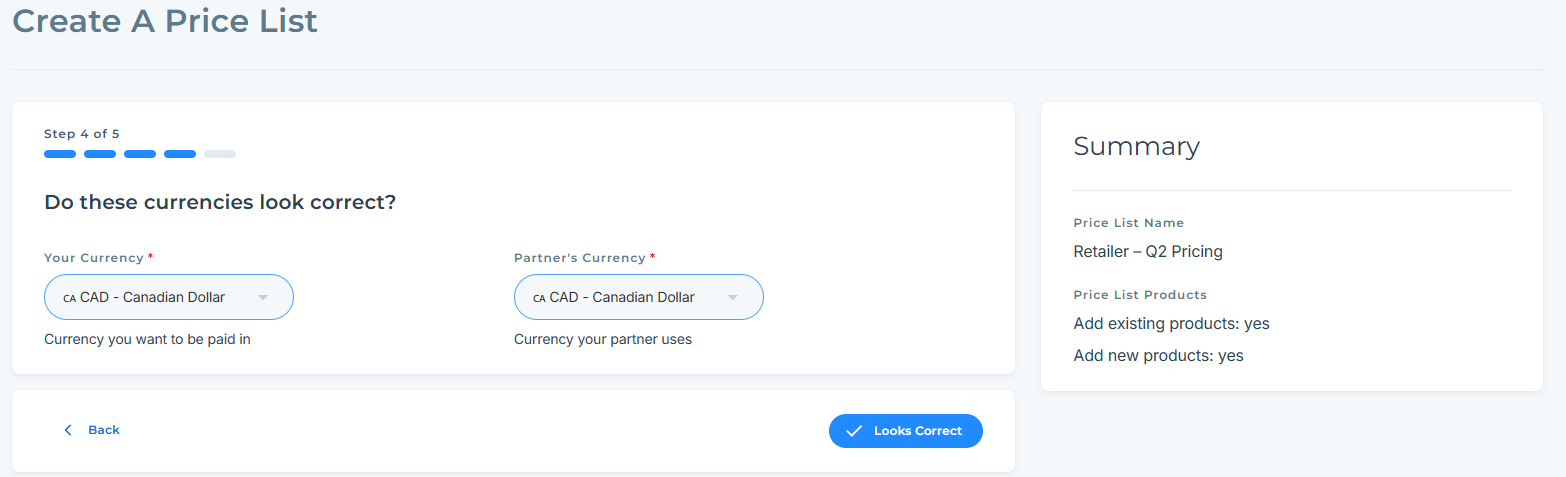
Select the currency for the Price List. The base currency is the currency you, as the supplier, will be paid in. If your partner plans on selling in a different currency, you can specify said currency and include a conversion rate which will be used to calculate a new suggested retail price for your retailers.
The above image, the supplier will be paid in CAD, but their partner will be selling the products in USD. A conversion rate has been added so that the supplier's product has a new suggested retail price in USD for the retailer to use.
Note: Using a conversion is optional, and it will NOT change or update based on the ForEx rates of the two currencies, this is a static rate that does not reflect real time market fluctuations.
You then have the option to set up a rounding rule if you wish. This rounding rule can be used to enforce how a suggested retail price rounds after the decimal. If no rounding rules are entered, the price won't be rounded. Valid values are 0-99. More details on how rounding works can be found later in this article.
Set Margins or Discounts
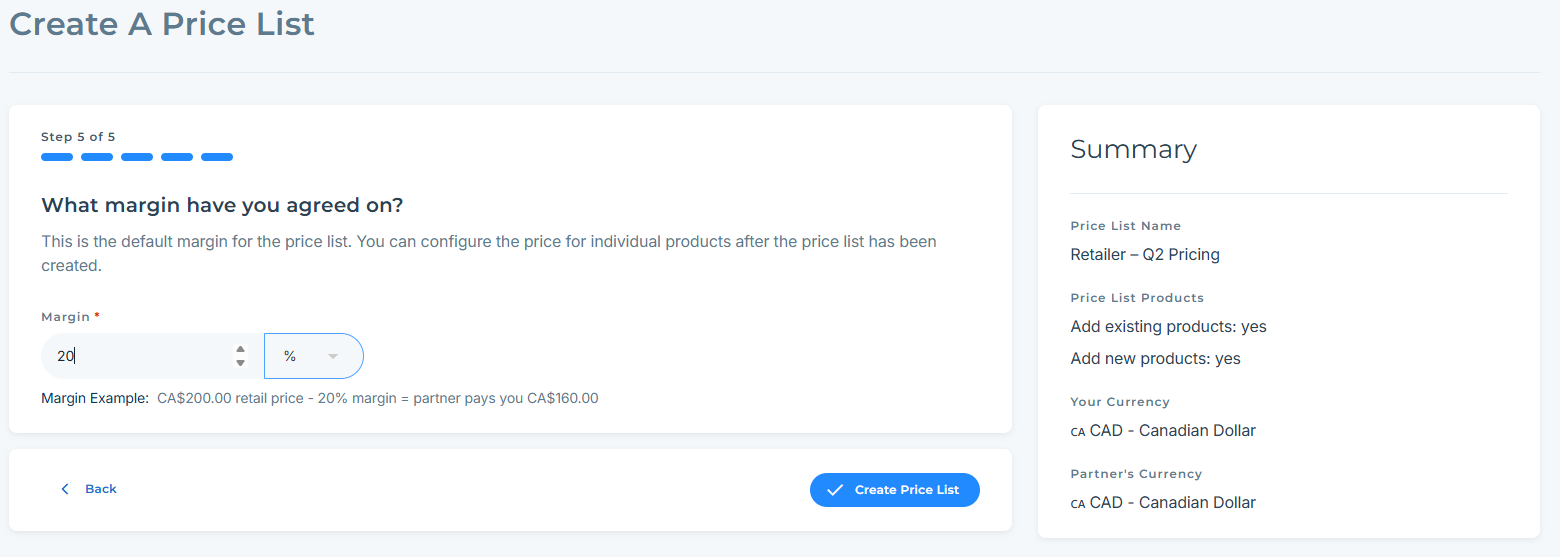
Next, you will want to apply a margin to your price list. A margin represents the discount that you have negotiated with your retailer. This value will be subtracted from the retail price of each product within the Price List.
In the above photo, this supplier is setting a discount margin of 20% for their partner for all products. This means that if they usually sell a product for $50, their retailer will pay $40 for it.
You will then be asked if you want to apply this discount to every priceable product in your catalogue. If you choose "Yes", all of your active products within Modern Dropship will be offered with this margin. If you choose "No", you will need to price each product individually on the Price List configuration page. To do this, navigate to the Price List in question and click the "Add New" button.
You then have the option to set up a rounding rule if you wish. This rounding rule can be used to enforce how a suggested retail price rounds after the decimal. If no rounding rules are entered, the price won't be rounded. Valid values are 0-99. More details on how rounding works can be found later in this article.
Confirm
Click the "Create Price List" button whenever you're ready, and the new Price List will be added to the Price List table.
Automatically Pricing New Products
Price Lists can be configured so that any future products synced to Modern Dropship will be automatically made available for retailers that have this Price List assigned to them, applying the configured margins to each product.
To enable this feature, simply navigate to the Price List in question and enable the "Apply to New Products" toggle as depicted below. Once you have toggled the setting click the "Save Price List Configuration" at the bottom of this section to save.
Ignoring Pricing Updates for Products
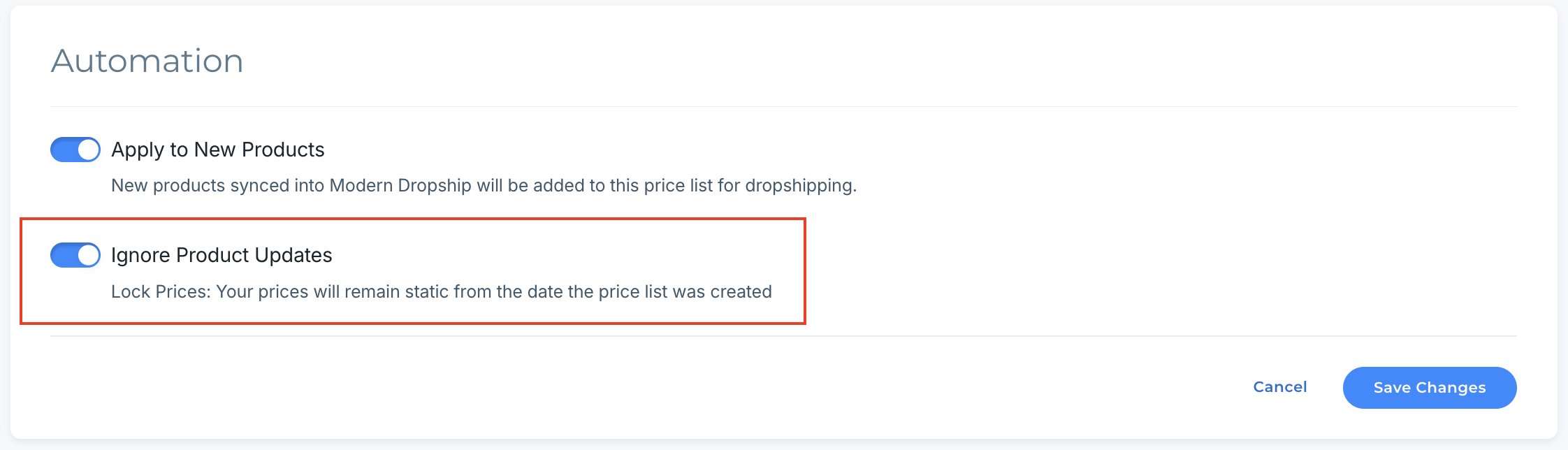
You can also choose to prevent any product changes that may sync to Modern Dropship from your platform from being applied to your Price List, such as updated retail prices for products included in the Price List in question. In order to ensure such changes are not reflected in your Price List, enable the "Ignore Product Updates" toggle. By default, any updates to product price will be reflected in your Price List. Click the "Save Price List Configuration" at the bottom of this section to save your new settings.
Next Steps
Congratulations! You've uploaded products. You've assigned prices. Now you just need to add a partner! If however, you have already partnered with a retailer, you can assign your newly created Price List to them by clicking the "Edit" button in the above configuration panel under the "retailers Assigned this List" section.
Glossary
We've defined the terms we use in our price lists below:
Your Retail Price - The price synced from the suppliers platform. If there is no currency difference in the partnership, this will also be the retailer Retail price.
You Earn price - The amount the supplier is paid by the retailer for fulfilling an order
Dropship Margin - The percentage or fixed amount that is taken off 'Your Retail' price to calculate the 'You Earn' price
Conversion factor - Used to convert the supplier retail price into the retailer Retail price depending on the difference in the currencies being used in the partnership.
More FAQs
In addition to these topics we have a separate video FAQ here with recorded videos for additional common questions!
Who pays for shipping?
In most cases, the supplier covers the cost of shipping the product. This is negotiated with your partner.
How do I factor in shipping costs?
There are several ways that partnerships can choose to handle shipping costs. One option is for suppliers to include a flat-rate shipping cost in the overall price. For example, if you decide to add a flat-rate shipping cost of $10 per item, you can add $10 to both the base price and suggested retail price of each item. This way, the customer will pay a total price that includes the item cost and the flat-rate shipping fee. You can manually set prices when creating your Price List, or adjust them later by editing existing prices in a list.
Another option available is to use our Per Order Fee feature to apply a flat cost to each order. This feature needs to be activated on your account, so please reach out to support@moderndropship.com if you would like to utilize this option.
Alternatively, some suppliers prefer to bill retailers manually for shipping costs incurred over an agreed-upon time frame. For instance, at the end of each month, the supplier would calculate a lump sum amount for all orders that month and send it to their retailer for payment. Ultimately, it's up to each partnership to decide how to handle shipping costs for their partnership.
Do I need a unique Price List for each of my retailers?
You can either create a unique Price List per retailer or attach a generic Price List to your retailers. The cases where you will need a new Price List are if you are listing with a retailer in a new currency or if you are offering a retail margin for which you have not already created a Price List for.Â
How do I double-check my Price List to ensure it's correct?
Once you've created your Price List, you can click on the entry in the Price List table and spot check the information.
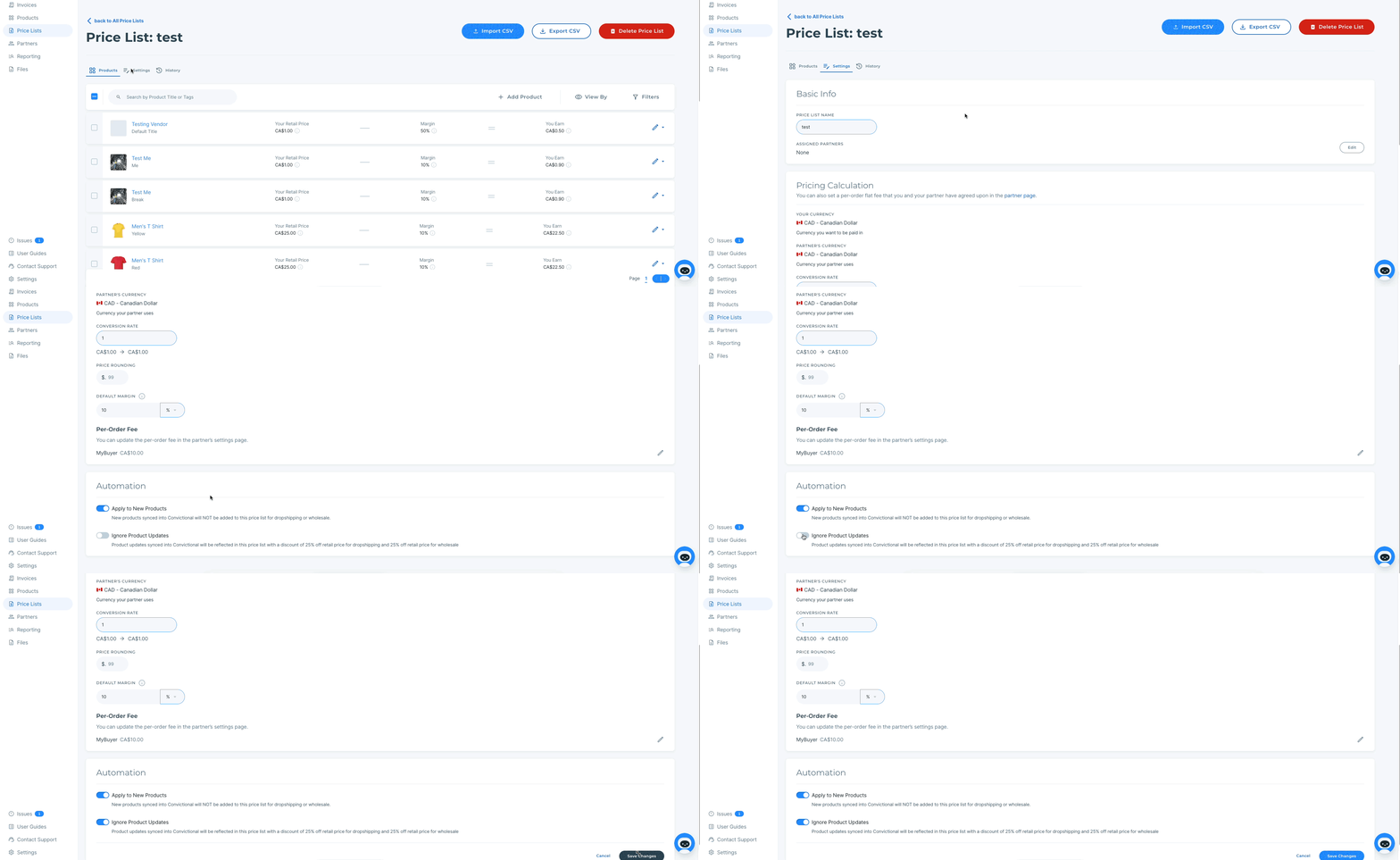
You can also make one-off changes by selecting the desired Price List Entry and modifying the values in the pop-up below.
Will my new products sync over?
By turning on the "Apply to All Products" tab, any new products that you sync through into Modern Dropship will automatically be made available to your retail partners.
How Does Conversion Work?
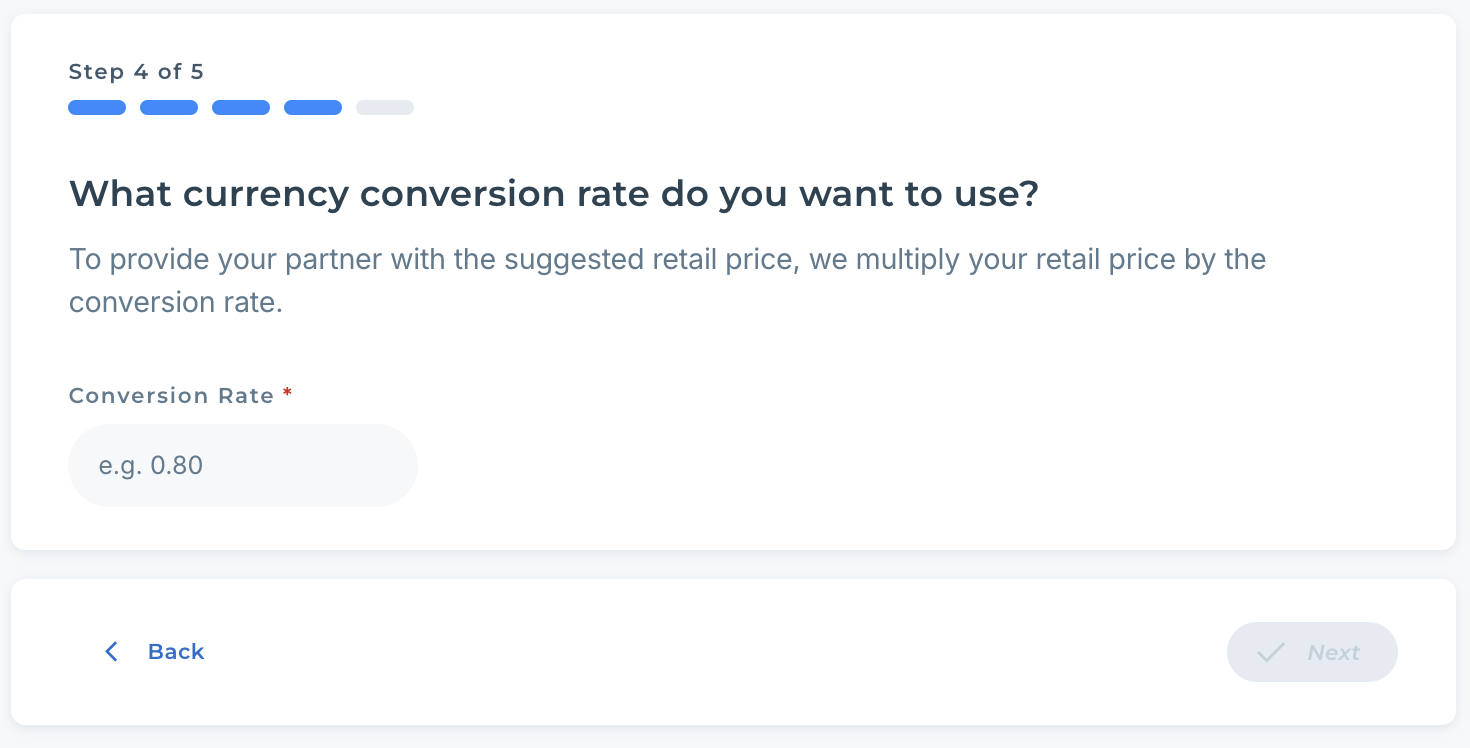
The conversion rate to apply to your prices where the base price currency (ex: USD) is different than the retail price currency (ex: CAD). This conversion factor only affects your suggested retail prices, not your base prices.
Imagine you sell a pair of boots in your own Shopify store with a retail price of $120 USD but you want to sell with a Canadian retailer. You input a conversion of 1.4 (the exchange rate from USD to CAD). This means that your suggested retail price will be $168 CAD (1.4 x 120) when your product syncs over to the retailer's ecommerce platform denominated in CAD.
How Does Rounding Work?
Like conversion, rounding only affects suggested retail prices, not base prices.Â
In retail rounding is usually not the same as mathematical rounding. Think of it more as a "What cent value do I want the price of my item to have?"
If you put in a rounding value of "99" then all the prices will end with 99 cents.
Example:Â Entering "99" rounds the retail price to end in .99, such as rounding a price of $167 to $167.99. Entering 0 set the cent value to 0.
What's The Difference Between Fixed and Percent Discounts/Margins?
Example: Using the previous example of the $120 boots, setting the discount to 25% would mean that your base price for that product would be $90 (since the original retail price was $120). You keep $90 as the supplier (the base price), while $30 serves as the retail margin.
Example: Using the same example of the boots, setting the discount to be a fixed $40 would mean that the base price is $80, the retail margin is $40, and the retail price remains at $120.
How do I edit my price lists?
Please refer to our detailed guide on Editing Price Lists for instructions on modifying existing price lists.