
Step-By-Step for Retailer Onboarding
Retailer Onboarding for Dropship
1. Create Account
Navigate here to create a new account: https://app.moderndropship.com/signup
2. Integrate Platform
Once you have created your account and logged in you can ensure that your eCommerce platform is integrated correctly so your products will upload to Modern Dropship automatically. The following eCommerce platforms are available to integrate:
You can follow the appropriate guide to connect your platform. If you run into any issues with the integration, please reach out to our support team at support@moderndropship.com.
Once you have connected your platform, you will see your products sync within 1 hour. In order for the products to sync properly, they will need to be published and showing on the storefront of your platform.
3. Update Business Settings
Once you have your eCommerce platform integrated, and your products are in the process of being uploaded to Modern Dropship, you can proceed with updating the following settings:
Please make sure your company details, including your URL, are correctly listed in this section.
We populate the Billing Address automatically using information we fetch from your platform, please ensure this is correct. You can use this same address to populate both the Shipping and Returns addresses as well.
This address will be used to calculate the tax rate for invoicing partners if you do not use Stripe for invoicing.
You can invite members of your organization in this section to provide them with access to the Modern Dropship dashboard. If you plan on managing multiple accounts on Modern Dropship, you can review this guide on switching between accounts.
Manage notifications sent to your team members from this section. Each team member has control over their own notifications when logged into Modern Dropship.
If you plan on invoicing your partners using Stripe, please set up your Stripe account here. Once your account is set up, any orders that get fulfilled for partners eligible to be invoiced through Stripe (see partners section to confirm eligibility) automatically. Be sure to review our documentation on invoicing for a comprehensive guide.
4. Invite Suppliers
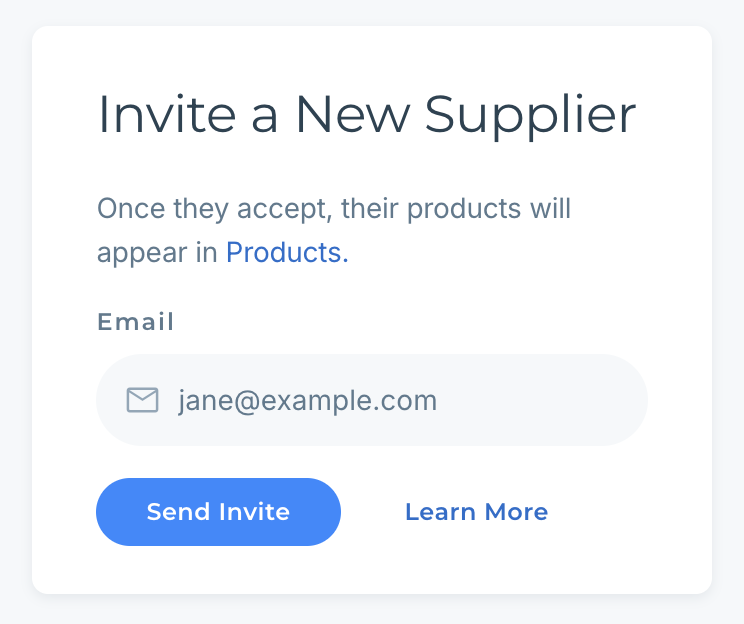
Navigate to Partners > Invite Suppliers Section on right side
Once you invite a supplier they will receive an email notification to either create a new account if they are a new MD user or accept the Retailer invite if they are an existing user.
5. Partnership Actions
Discuss requirements with your Supplier:
6. Review Products and Discuss Merchandising Strategy With Your Partner
By now, your suppliers products should be showing in the Products tab of your Modern Dropship dashboard. Be sure to review your products before setting them as active to make sure they meet your requirements.
7. Product Selection
Select the items you want to sell
Once the products have been selected, they may take up to 1 hour to complete the sync and show in your eCommerce platform
8. Verify Shipping options
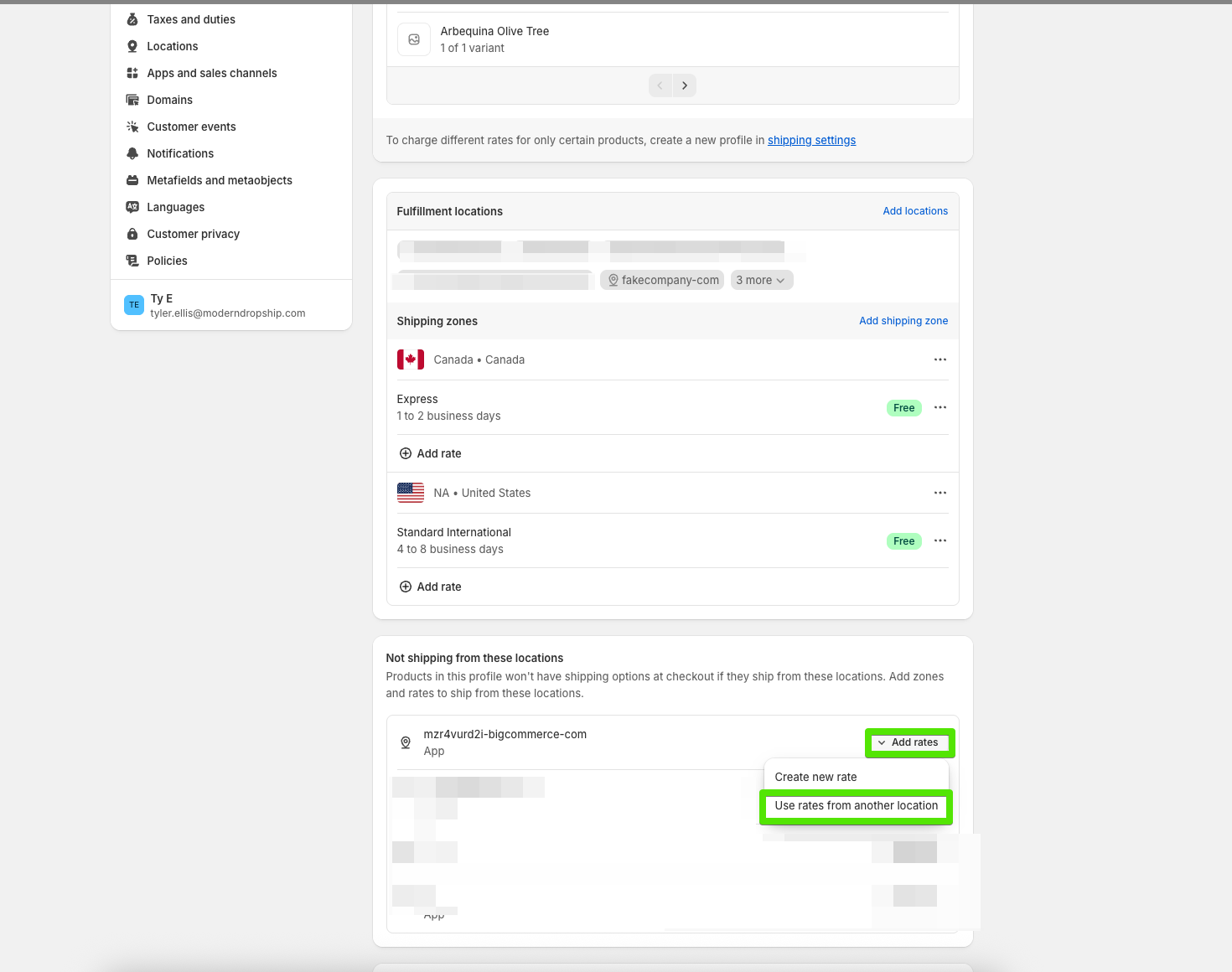
Once products have been created in your eCommerce platform you will need to verify that have been assigned to an eligible shipping profile. Follow these steps to assign the profile: https://moderndropship.frontkb.com/en/articles/11132993
For more instructions on how to manage Shipping Profiles in Shopify you can review their documentation here.
9. Order Fulfillment and Cancellations
Once products appear on your storefront, orders for those items will sync back to Modern Dropship for fulfillment by your partners. Any errors during the sync will be flagged in the Issues section of your dashboard.
Once your partner fulfills the order, the status will update in your ecommerce platform, and your customer will receive a shipping notification based on your settings.
If your partner cancels the order, that status will also update in your platform, and the customer will be automatically refunded. Establish clear guidelines with your partner regarding order cancellations and communicate any customer-initiated cancellations to ensure the order hasn't already been fulfilled.
Important:
If you are Shopify integrated, do not click the ‘request fulfillment’ button on orders synced from Modern Dropship, as it will disrupt order syncing with your partner.
Never add or remove variants from a product in your ecommerce platform if it has been synced to Modern Dropship. This may result in an ‘item not recognized’ error.
Never cancel an order in your ecommerce platform without explicitly communicating that with your partner. Orders that are canceled will automatically refund the retailer's customer, so you should wait for approval from your partner before taking this action.