Step-By-Step for Supplier Onboarding
This article guides suppliers through the process of getting started with Modern Dropship.
1. Create Account or Accept Account Invitation
You should receive a Modern Dropship invite email from your Retailer
New to Modern Dropship
Create a new account using the invite link
Existing Modern Dropship Supplier
Accept the invite and login with your exiting MD credentials this will link the new retailer to your existing account.
Tip: Do not create multiple accounts unless required; contact support if you need assistance. If you would like to create another account, please contact us at support@moderndropship.com.
2. Integrate Platform
Connect your eCommerce system for order and product automation. Supported platforms include:
Once connected, product sync typically completes within about one hour. Products must be published and visible on your storefront for successful syncing.
Never add or remove variants from a product in your ecommerce platform if it has been synced to Modern Dropship. This may result in an ‘item not recognized’ error.
If you are updating product details, such as the description or product images, you will need to have your partner deselect and re-select that product in their Modern Dropship dashboard to sync those changes to their ecommerce platform.
3. Update Business Settings
After integration, you can proceed with updating the following settings:
Please make sure your company details, including your URL, are correctly listed in this section.
As a new feature, we will now populate the Billing Address automatically using information we fetch from your platform. You can use this same address to populate both the Shipping and Returns address as well.
Please ensure that the Billing location is correct. This address will be used to calculate the tax rate for invoicing partners if you do not use Stripe for invoicing.
You can invite members of your organization in this section to provide them with access to the Modern Dropship dashboard. If you plan on managing multiple accounts on Modern Dropship, you can review this guide on switching between accounts.
Manage notifications sent to your team members from this section. Each team member has control over their own notifications when logged into Modern Dropship.
If you plan on invoicing your partners using Stripe, please set up your Stripe account here. Once your account is set up, any orders that get fulfilled for partners eligible to be invoiced through Stripe (see partners section to confirm eligibility) automatically. Be sure to review our documentation on invoicing for a comprehensive guide.
4. Partnership Actions
Discuss requirements with your retailer:
5. Review Products and Discuss Merchandising Strategy With Your Partner
By now, your products should be showing in the Products tab of your Modern Dropship dashboard. Be sure to review your products to ensure they meet your partners' merchandising requirements. This may include:
Product details (SKU or barcode requirements)
Product / variant structure
Ensure your Retailers product validation requirements are met
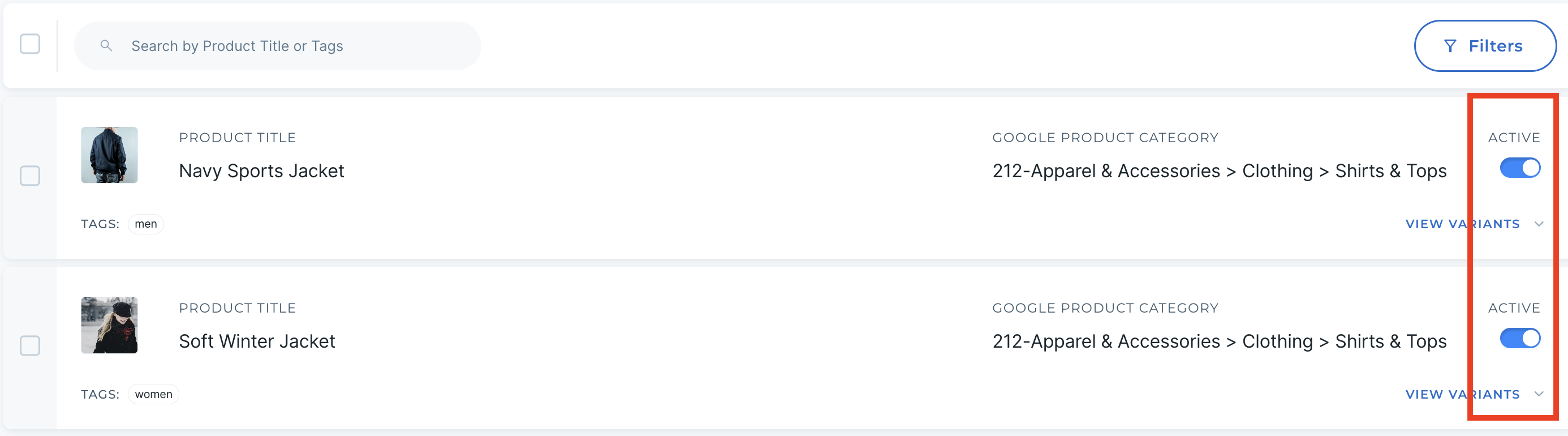
6. Mark products 'Active' or 'Inactive'
After your catalog has synced, review the products to confirm their availability :
Set items you want to sell as Active.
Set items you do not want to sell as Inactive.
7. Create Pricelist
In order for items to be available to retailers to sell you must create a pricelist. This means that only items in the pricelist will actually be available for the retailer to sell.
Only one pricelist can be assigned to a retailer at a time but you can create multiple different pricelists to assign to other retailers or create a discounted/adjusted pricelist to assign during a sale or promotion.
If an item is marked as active in the products section but NOT in the pricelist it will be visible to the retailer but they will not be able to select it.
If your margins are not consistent across the entire catalog, you will need to update your prices one by one. Before doing so, ensure that the ‘Ignore Product Updates’ setting is toggled on.
Pricelist Guides:
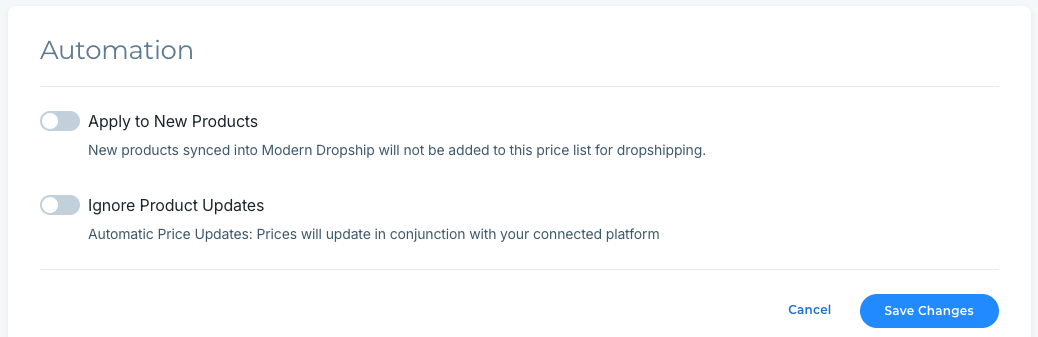
Important settings:
There are two important settings which make updates to your pricelists. To access these click the pricelist you want to edit > Settings > Automation (bottom).
Apply to New Products (If you do not have this enabled you will need to manually add all new products to the pricelist)
Ignore Product Updates
8. Place a Test Order
Once the price list is created, you can run a test order from the Get Started page. See this document for a walkthrough of that process.
9. Order Fulfillment Protocol
Always fulfill an order with both a carrier name and tracking number. If carrier information is not added, the order status will not successfully update in Modern Dropship and instead return an error. If you are integrated using WooCommerce, you will need to use this plugin to update those fulfillment details successfully.
Never cancel an order in your ecommerce platform without explicitly communicating that to your partner. Orders that are canceled will automatically refund the retailer customer, so you should wait for approval from your partner before taking this action.
10. Invoicing Protocol
Once an order has been marked and fulfilled in your ecommerce platform it will update to ‘Shipped’ in Modern Dropship.
If you invoice through Stripe, the order will automatically be invoiced at this time. The tax applied to the order must be set up from your Stripe dashboard.
If you invoice your partner external to Modern Dropship, you will see an invoice total showing in the order page. The tax applied to the order is calculated based on the Billing location you have set.
Any invoices where payment has failed will show up in the Issues section of your Modern Dropship dashboard. Stripe invoices that have failed can be retried directly from the Stripe dashboard. If you received continued payment errors, please contact the partner associated with the order.
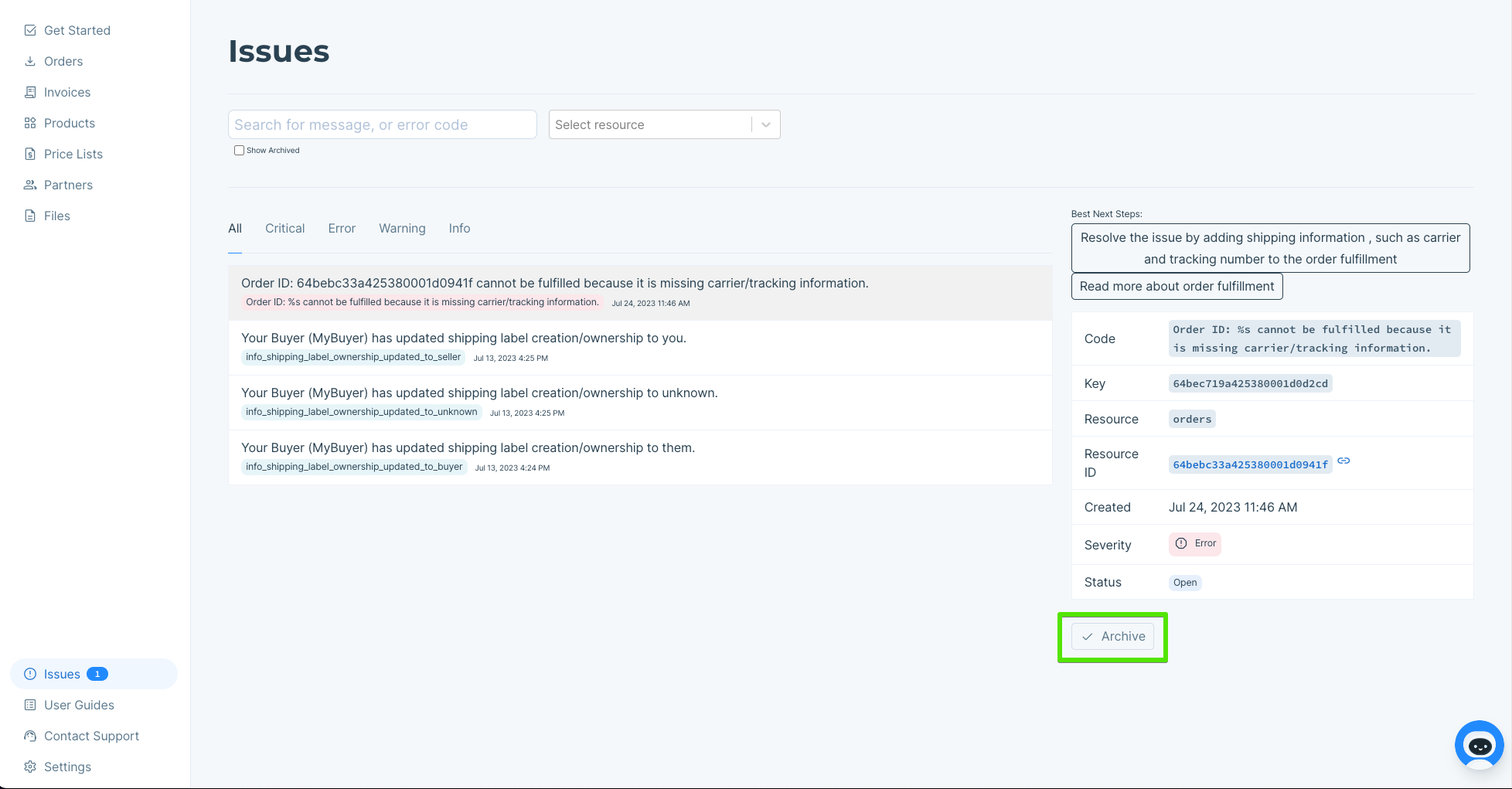
11. Address Any Errors Showing in the Issues Section
Be sure to review any errors that show up in the Issues section. Common errors include:
Issues with order syncing (out of stock, platform integration, missing carrier details)
Failed invoice payments
Price list errors
Instructions to resolve each error will be given on that issue. Once an error has been handled, you can mark it as archived using the option shown below: